Articles in this topic
Publish your changes
Make your edits visible to guests with one click, undo a publish if you change your mind, and share your website address.
5 min read
The website editor keeps your changes in a draft that only your team can see. When you are happy with your changes, you publish them. From that moment on, guests see the new version of your website. And if you change your mind, you can undo it.
What the toolbar labels mean
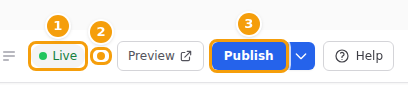
The labels at the top right of the editor always tell you where you stand:
| What you see | What it means |
|---|---|
| Live (green dot) | Your website is online. Rest your mouse on it to see when it was last published, and by whom. |
| Hidden (grey dot) | Your website is switched off, and guests see your standard booking page. See Hide your website. |
| Orange dot | Unpublished changes: your draft has changes that guests don't see yet. On a wide screen the words appear next to the dot. Click the dot to open this help. |
| Publish (blue button) | There is something to publish. Click it to put your changes online. |
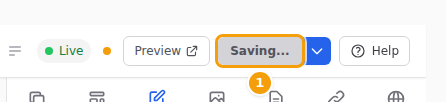
| Saving... (grey button) | The editor is still saving your last change. Wait a moment until the button says Publish again. |
| Up to date (grey button) | Guests see exactly what is in your draft. There is nothing to publish. |
Good to know
Some things don't wait for Publish. Sections that show your opening hours, menus, offers, events or guest reviews take them from other parts of Clava, and so do your logo and your contact details. When you change them there, your live website shows the change straight away. See Draft and live website.
Publish your changes
-
Make your changes, and check them in the preview. See Preview your draft.
-
If you changed something in the Site, Nav & Footer or Page tab, click its save button first (Save All Settings, Save or Save Page Settings).
-
In the toolbar, click Publish.
-
Sometimes the editor asks you to confirm first — see When the editor asks first below. Read the message and click Publish.
-
A green message appears: Published — your changes are live. The button now says Up to date.

The green message (1) with Undo (2), and the Up to date button (3) -
Want to see the result? Click the small arrow next to Up to date and choose View live site.
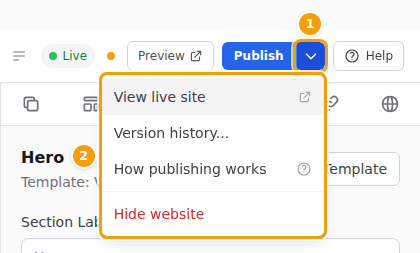
How publishing works in that menu opens this help, and Learn more in the green message too.
Every time you publish, the editor keeps a copy of your website as a new version. You can go back to any of them later. See Version history.
Tip
Your booking form always uses the colours of your live website: on your website, on your standard booking page and in your booking widget. After you publish new colours, the booking form uses them too. See Your booking form follows your website.
When the editor asks first
Most of the time your changes go online as soon as you click Publish. The editor asks you to confirm first when a publish changes more than the content of your pages:
-
New pages going live: you added one or more pages. Check that they are ready for your guests.
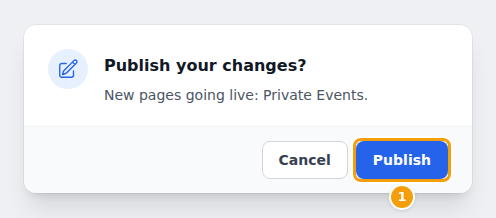
Publish your changes? New pages going live: Private Events. -
Pages that will be removed: you deleted one or more pages. Guests can no longer open them after you publish.
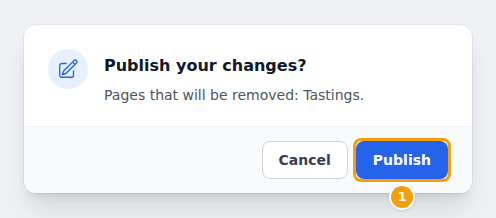
Publish your changes? Pages that will be removed: Tastings. -
Publish your website? your website is hidden at the moment. After you publish, guests see your website again instead of your standard booking page.
Click Publish to go ahead, or Cancel to keep working. Nothing changes on your live website when you cancel.
Undo a publish
Published by mistake? You can go back in one click.
-
In the green message Published — your changes are live., click Undo.
-
The previous version is online again. The message says, for example, Version 9 is live again.

After Undo: the previous version is live again (1), and Publish (2) is blue because your changes are still in the draft -
Your changes are not lost: they are still in your draft, and the Publish button is blue again. Fix what you need, and publish again when you are ready.
The green message disappears after a short while. Missed it? Open the version history and make the previous version live there. See Make an older version live.
Good to know
The curved arrows in the toolbar undo and redo your edits in the draft — for example a deleted section. The Undo in the green message undoes a publish.
Share your website and booking link
Once your website is online, tell your guests where to find it: in your Instagram bio, on your Google Business Profile, on Facebook, in your emails or on a QR code on your tables.
Your website address
-
In the toolbar, click the small arrow next to Publish (or Up to date) and choose View live site.
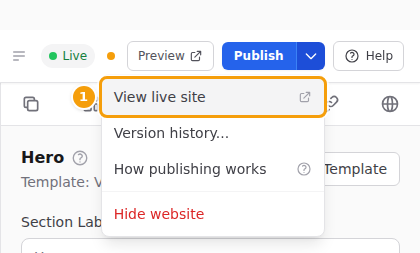
View live site (1) in the menu next to Publish -
Your live website opens in a new browser tab.
-
Click the address bar at the top of the browser and copy the address (Ctrl+C, or Cmd+C on a Mac). Paste it wherever you want to share it.
Your booking page address
Your booking page address always opens a booking form: your website's Booking page (or its first page with a Booking section, preferably one that shows the form itself), and your standard booking page while your website is hidden. Use it where guests should book straight away, for example for the reservation button on Google or a "Book a table" link on Instagram.
-
In the menu on the left, click Dashboard.
-
In the box with your venue's name, under Booking Page, click Open booking page.
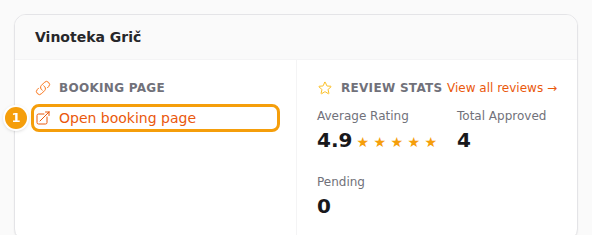
Open booking page (1) on your dashboard -
Your booking page opens in a new tab. Copy its address from the address bar, as above.
Tip
While the Grow your venue list is on your dashboard, you can also click Copy link next to Your booking page is live. That copies the booking page address in one click.
Both addresses keep working while your website is hidden: your website address then shows your standard booking page, so a link you shared never leads to an error. See Hide your website.
Good to know
Would you like your own web address, such as www.your-restaurant.com? Ask the Clava team via Support in the menu on the left.
Working in several tabs or with colleagues
There is only one draft for your website. If you have the editor open in two browser tabs — or a colleague edits the website at the same time — you all work on the same draft.
- Publish puts everything that is saved in the draft online, including changes made in the other tab.
- If the website was already published from another tab, the editor tells you Already up to date.
- Clicked Undo after someone else changed the live website? The editor says Nothing to undo: the live website has changed since. Use the version history instead.
Tip
Not sure what is in the draft right now? Reload the editor page (press F5). It then shows the latest draft, including your colleague's changes.
Related
- Check your changes before you publish — Preview your draft
- Go back to an earlier version — Version history
- Take your website offline — Hide your website
- My changes don't show — Troubleshooting
- Several restaurants? Publish each one — Several locations