Articles in this topic
Guest photo sharing
Let your guests add the photos they take at your party and share the ones they like. Photos stay private until they are shared. The three things that have to be in place, and how to switch the Photos page on and off.
6 min read
Party and event websites only.
With photo sharing your guests add the pictures they take on your day from their own phones. You get them all in one album, and the guests decide which of their photos the other guests may see.
How it works
A photo a guest adds is private: only that guest and you can see it. The guest can share a photo, and take the sharing back at any time. A shared photo appears in the Shared gallery that every signed-in guest can browse. You can share, hide or delete any photo yourself, except one the guest has taken back, which you cannot share again.
| Who | Sees |
|---|---|
| The guest who added a photo | their own photos, private or shared, and everyone's shared photos |
| Other signed-in guests | only the shared photos |
| You (the couple or hosts) | every photo, on your Photos page |
| Your venue's staff | only how many there are, and the shared ones; never a private photo |
| A visitor who is not signed in | nothing |
Pictures are stored privately, without their location data, and are kept for 12 months after your event. Download everything before then, from the Photos page.
The three things that must be in place
Photo sharing works for your guests only when all three are true:
- Your venue offers it. Photo sharing is a feature of your venue; not every venue has it, and some switch it on only on request. If it is not offered yet, the Photos page is greyed out in + Add Page; press Ask my venue to offer this for your event and the venue is told. It then shows Your venue has been asked.
- Your website has a Photos page, and it is published. The page is what lets guests in: add it (below) and publish.
- Open events only: you confirm that everyone who registered may see what is shared. A closed party, such as a wedding with a guest list, needs no confirmation.
While one is missing, the section shows a chip in the builder that tells you which: Ready: guests can use this, Waiting for your venue to offer it, Waiting: publish this page, or Waiting for your confirmation.
Good to know
For venue staff: photo sharing is part of the brand's plan or an add-on, and you switch it on per event under Options → Guest features in the Party Manager. You see counts and the shared photos only, never a private photo.
Add the Photos page
-
In the Pages tab click + Add Page and choose Photos. The page comes with a short text and the Photo Wall section. (On your Photos page in the menu, Add the Photos page does the same.)
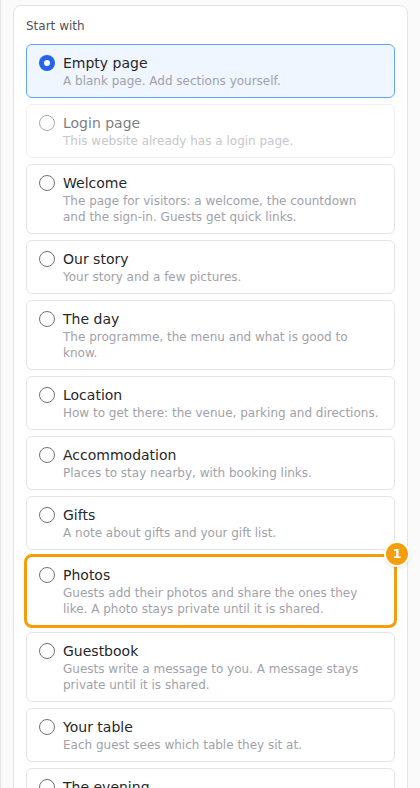
In the Add Page form, choose Photos (1) -
Change the text if you like, then publish: guests see nothing before you publish. See Publish your changes.
The Photo Wall is always for signed-in guests only; the choice cannot be changed. See Who sees a page or a section.
Important
If you remove the Photos page and publish, photo sharing switches off for your guests. Guests can no longer add or see photos. The photos already added are kept, and you still see them on your Photos page.
Settings
Open Photos in the menu, then Album settings:
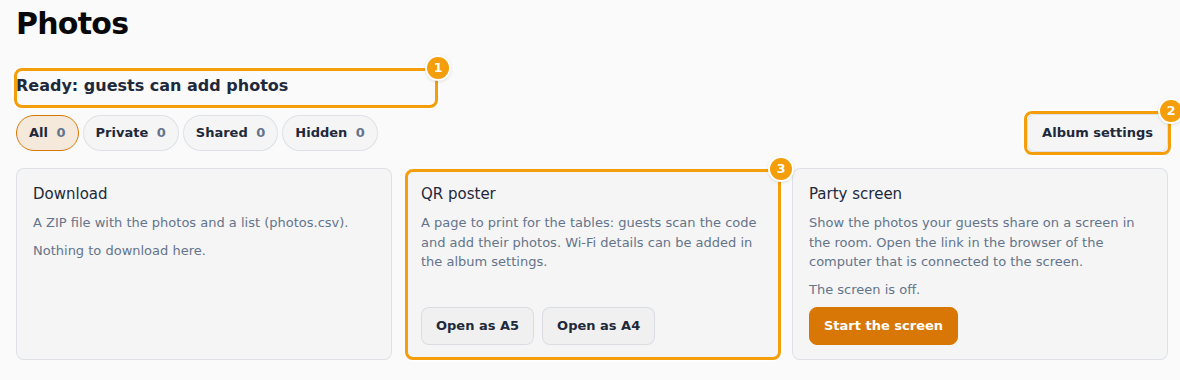
- Uploads open from and Uploads close after — the days guests can add photos. Browsing, sharing and deleting work outside them.
- Photos per guest — the most one guest may add.
- Guests may share their photos — turn it off to approve every photo yourself: photos then stay private until you share them.
- Guests may download photos — hides the download buttons. A guest can still save a picture they can see.
Privacy
Guests see a short sentence before they add a photo: private until shared. You are the one who decides about your guests' pictures; your venue and the platform only look after them for you. You can delete a photo at any time, and the guest's own photos can be deleted by the guest.