Articles in this topic
Hide your website
Take your website offline for a while — guests then see your standard booking page — and put it back online when you are ready.
3 min read
Need to take your website offline for a while — for example while you rebuild it, or during a long closure? You can hide it. Guests can still book a table: they are sent to your standard booking page instead, a simple page with only the booking form. Nothing is deleted, and you can put your website back online at any time.
Hide your website
-
In the toolbar, click the small arrow next to Publish (or Up to date).
-
Choose Hide website (in red, at the bottom of the menu).
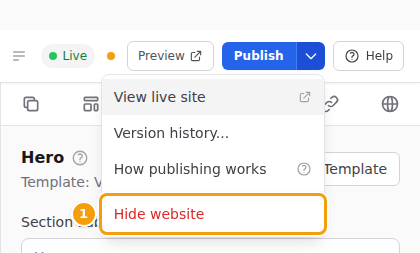
Hide website (1) in the menu next to Publish -
The editor asks Hide your website? and shows the address of your standard booking page. Click Hide website.
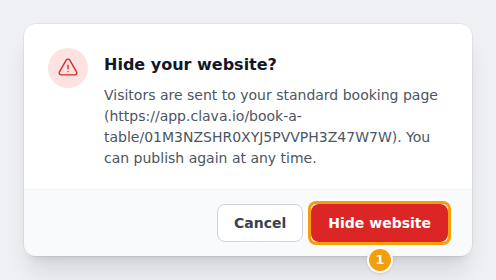
Hide your website? — Visitors are sent to your standard booking page (its address is shown). You can publish again at any time. -
The message Your website is hidden. Visitors see your standard booking page. appears. The label in the toolbar changes from Live to Hidden.

The Hidden label (1), the message (2) and the Publish button (3)
Tip
You can also hide your website from the version history: click Hide website at the bottom of the Version history window. See Version history.
What guests see while your website is hidden
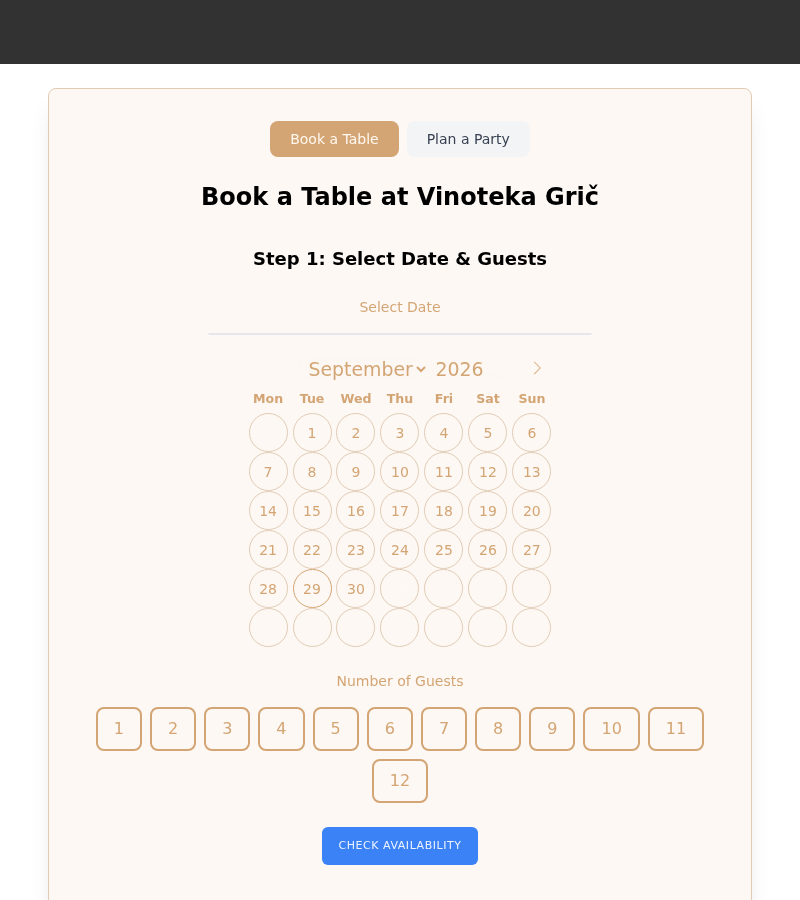
While your website is hidden, everyone who opens its address lands on your standard booking page — the simple page where guests pick a date, the number of guests and a time. Guests can keep booking as usual, and links you shared keep working. See Share your website and booking link.
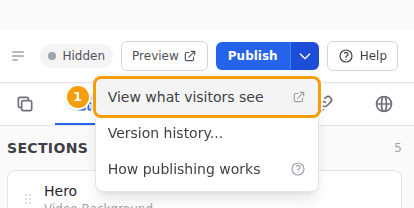
To see it yourself: click the small arrow next to Publish and choose View what visitors see.
Hiding your website does not delete anything:
- your draft stays in the editor, and you can keep working on it;
- all your versions stay in the version history;
- your booking calendar, bookings and settings don't change.
Put your website back online
-
Open the website editor. The label in the toolbar says Hidden, and the Publish button is blue.
-
Click Publish.
-
The editor asks Publish your website? and lists the pages that will go online. Click Publish.
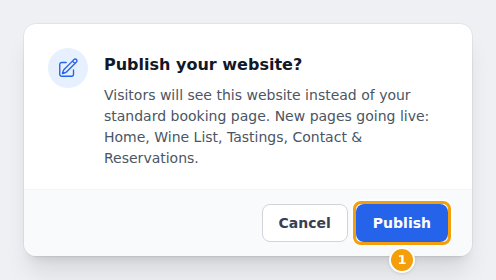
Publish your website? — Visitors will see this website instead of your standard booking page. -
The message Published — your changes are live. appears, and the label changes back to Live.
This publishes your draft — including any changes you made while the website was hidden. Want exactly the website you had before instead? Open the Version history and click Make live next to that version. See Make an older version live.
Party and event websites
For a party or event website, the button is called Unpublish instead of Hide website:
- The editor asks Unpublish your website? Click Unpublish to confirm.
- The label in the toolbar says Not published.
- Click Publish to put the website back online.
What guests see while the website is not published depends on what it belongs to:
- A party hosted by a client — nobody can open the party page any more: anyone who opens its address gets "page not found". A party has no public page until its website is published for the first time, so a new party starts out like this too. The organiser and your staff see a short note, This party page is not published yet, with buttons to open the editor and to preview the draft. Invited guests who open the link from their invitation still get into their guest area.
- An event of your venue — guests see the basic event page, with the ticket form, instead of your website. Until you publish the event's website for the first time, they see the basic event page too.
A party whose page was made with the old page editor also keeps the basic event page until its website is published.
Good to know
The standard booking page of a restaurant website and the basic event page of a venue event are always there, so guests never see an empty page or an error while the website is hidden. A client's party is the exception: it has no public page until its website is published, and its address shows nothing about the party to strangers. Publish when you are ready to share the address.
Related
- Publish your changes — Publishing
- Put an earlier version back online — Make an older version live
- Find and share your addresses — Share your website and booking link
- My changes don't show on my website — Troubleshooting