Articles in this topic
How guests sign in
How the sign-in link works for a household, how to send a personal link by WhatsApp, Viber, SMS or e-mail, what guests can do about their signed-in devices, and what to do when a link does not work.
5 min read
Party and event websites only.
Guests have no password. They sign in with a link, sent to the e-mail address on the guest list or by you.
How a link works
- The guest opens the link. They first see Continue as Ana K.? with a button; opening a link alone never signs anyone in, so a mail program that previews links cannot use it up.
- The guest presses Continue to the website. They stay signed in on that phone or computer (Remember me on this device is ticked; untick it on a shared computer).
A link is for one household: the guest on the list and their plus-ones. It signs in a few devices, so a couple can open it on two phones, and it works for a limited time. If it no longer works, the guest enters their e-mail address on the website and gets a new one.
Send a personal link
For a guest without an e-mail address, or whose message did not arrive, send the link yourself:
-
Open Guest list and click Sign-in link on the guest's row.

The guest list: whether the guest has signed in (1) and the Sign-in link button (2) -
Choose WhatsApp, Viber, SMS, E-mail the link or Copy link. The message is written for you; the mobile number of the guest is needed for the first three.
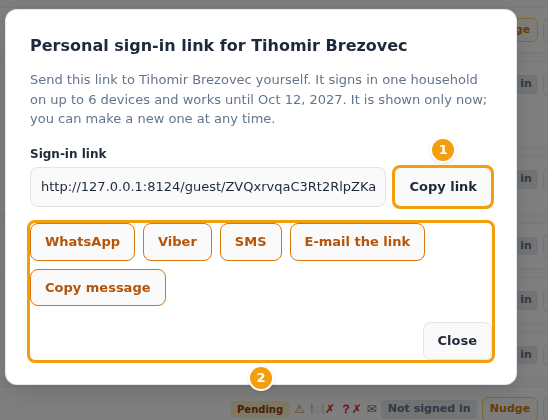
The personal link: Copy link (1) and the ways to send it (2)
The link is shown only now. You can make a new one at any time. On the guest list you can see Opened the site with the date, and filter for guests who have never signed in, so you know whom to remind.
To sign a guest out on every device, for instance a lost phone, use Sign out everywhere on the guest's row.
Signed-in devices
Guests see Signed-in devices in their guest area: which phones and computers are signed in, when each was last used, and a button to sign out one of them. Sign out everywhere signs out all of them and stops the sign-in links. A new device shows a short notice.
A guest can be signed in to several parties in one browser, and signing out of one party leaves the others alone.
When it does not work
- "This sign-in link no longer works" — it has expired or has been used on enough devices. Ask the guest to request a new one on your website, or send a personal link.
- A guest cannot be found — check that the e-mail address on the guest list is the one they use. A banned guest cannot sign in.
- A guest sees the sign-in page instead of a page — the page is for signed-in guests only, or it does not exist. See Who sees a page or a section.