Articles in this topic
Your party website
Open the Page Builder, edit your party website, publish it for the first time, choose which pages your guests and which visitors see, and find the Photos and Guestbook pages.
6 min read
For the couple or host of a party.
Your party has its own website. Your guests sign in there with their personal link, and the website holds what you want to tell them: the story, the programme, how to get there, the gift list, photos. You build it yourself in the Page Builder.
Open the Page Builder
Press Page Builder in the menu, under Website. The editor opens right inside your organiser area.
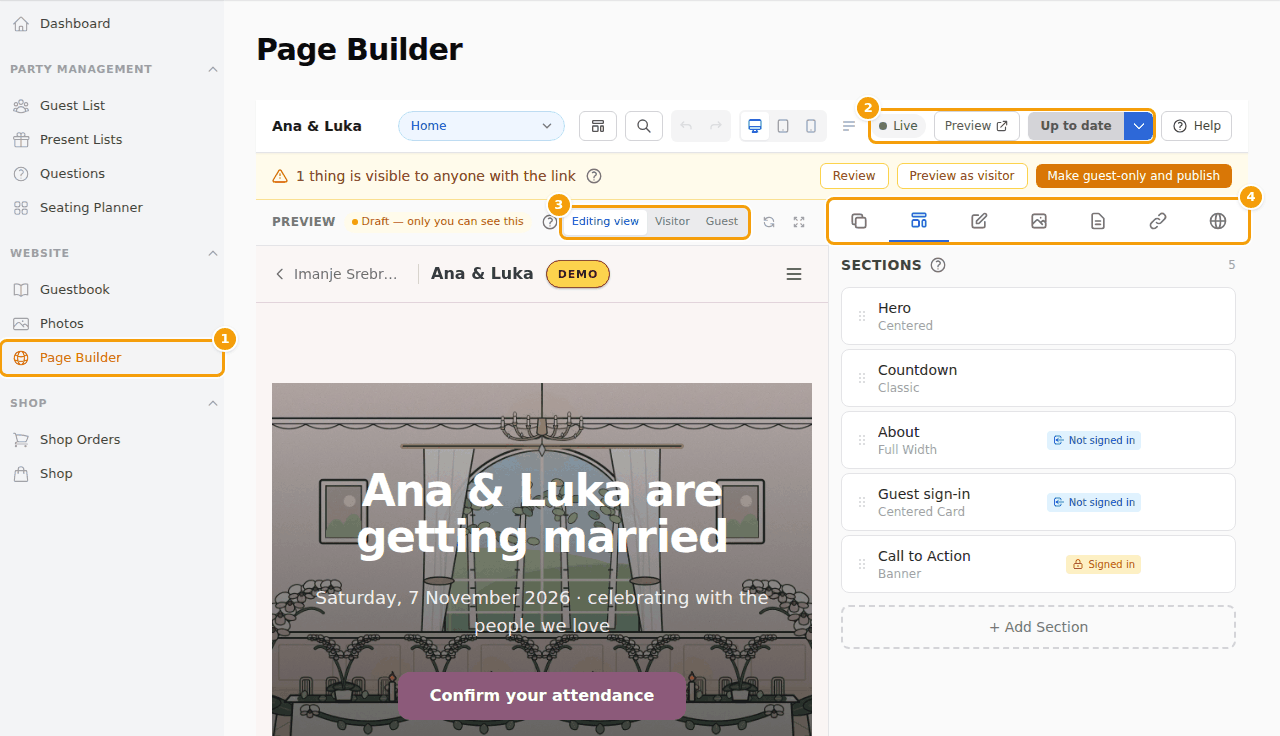
- (1) Page Builder in the menu.
- (2) The publish area. It tells you whether your website is Live or Not published, and whether you have changes that guests do not see yet.
- (3) The preview, with the choice Editing view, Visitor and Guest (see Who sees what).
- (4) The tabs: Pages, Sections, Editor, Media, Page, Nav & Footer and Site (the globe, the last icon).
It is the same editor that venues use for their own website, so everything in What the website editor does applies to you. Your changes are kept in a draft that only you and your venue can see, until you publish them.
Publish your website for the first time
A party has no public page until you publish its website. Until then, anyone who opens its address gets "page not found". That is by design, so that nothing about your party can be seen before you are ready. You and your venue see a short note instead, with buttons to open the editor and to preview the draft. Guests who open the link from their invitation still get into their guest area.
- Build your pages in the draft and look at them in the preview.
- Press Publish in the publish area.
- Open your website with View party page on the dashboard.
Your website is also shown to guests only while Party page active is on, on the dashboard. More about publishing, undoing a publish and going back to an earlier version in Publish your changes, and about taking the website offline again in Hide your website.
Who sees what
Every page and every section has a Visibility:
- Everyone: anybody with the address.
- Signed-in guests only: only your invited guests, after they have signed in with their link.
- Only visitors who are not signed in: for example a sign-in page, which disappears after signing in.
A party with a guest list starts private: its new pages are for signed-in guests only, and search engines are asked to stay away. You make a page public on purpose. To see your website as others see it, switch the preview to Visitor (a stranger) or Guest (a signed-in guest). The Privacy check at the top of the editor lists what a stranger can see and can make it guests-only with one click. More in Who sees a page or a section and Privacy check and View as.
Photos, guestbook and your table
Your guests can add and share their photos, write in a guestbook and look up their table. These are features that your venue offers, and each has a page on your website:
- Photos: see Guest photo sharing. When it is on, Photos appears in your menu, to see, share, hide, delete and download the photos.
- Guestbook: see Guestbook. Guestbook appears in your menu, with the messages and a printable book.
- Your table: see Your table and the seating plan.
In + Add Page you find all three. If your venue does not offer one yet, it is greyed out and you can ask your venue with one button.
Related
- Start from the beginning — Your first steps
- Add and arrange pages — Pages
- Share your address — Share your website and booking link