Articles in this topic
Your organiser area
How you get in with the link from your e-mail, what the dashboard shows, where everything is in the menu, how to change the language, and what your venue does and what you do.
7 min read
For the couple or host of a party.
The organiser area is your own page for planning the party. There is no password and nothing to install: you open it with a personal link from your venue.
Open your organiser area
- Open the e-mail from your venue, Your party dashboard for …, and press Open my party dashboard.
- Your dashboard opens. The link is only for you, so please do not forward it.
The link in the e-mail works for about an hour after the e-mail was sent. Once you open it, you stay signed in for as long as you keep working in the area. If you do nothing for about an hour, you are signed out for your own safety.
Get a new link
If you open the link later than that, or come back after a long break, you see a page called Link Expired (this page is only in English). That is normal, and it takes a minute to fix:
- Open the e-mail from your venue again and press the link in it.
- On the Link Expired page type your e-mail address and press Send New Link.
- A new e-mail arrives. Press the link in it. It works for about an hour, like the first one.
Good to know
A new link is sent only to the e-mail address your venue has written down for you. The page always answers "If the email address matches our records, a new magic link has been sent", also when the address is a different one. If nothing arrives, check your spam folder, then ask your venue to send you the welcome e-mail again.
What the dashboard shows
The Dashboard is the first page. It tells you how far you are and what is still open.
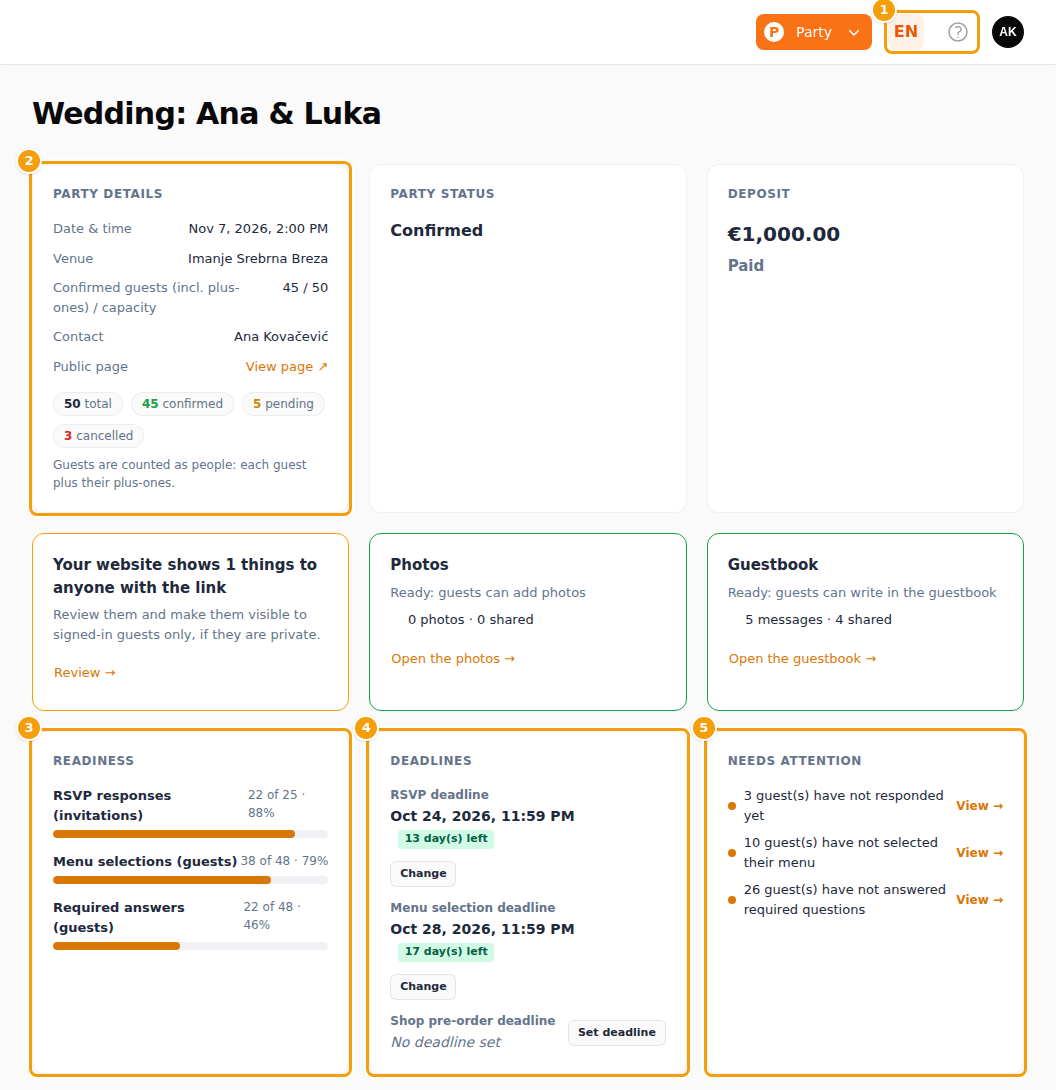
- (1) At the top right: the language button and the ? help button. See Your language and Help.
- (2) Party details: date, venue, how many guests are confirmed out of how many places there are, and your contact details. The counts are people: every guest plus their plus-ones.
- (3) Readiness: how many guests have answered the invitation (RSVP responses), chosen their menu (Menu selections) and answered the required questions (Required answers). "22 of 25 · 88%" means 22 of 25 are done.
- (4) Deadlines: the last day for the RSVP, the menu choice and the shop pre-orders. See Deadlines.
- (5) Needs attention: what is still open, for example guests who have not answered. View takes you to the right page.
Further down you find the Party status and the Deposit (both set by your venue), notices about your website, photos and guestbook, Quick actions (Chase stragglers sends a reminder to everyone who still owes an answer, View party page opens your website), the Dietary overview for the kitchen, the Features switches, Menu selections, Questions, Present list and a table of all Guests.
The Features switches
Tick or untick a switch and it is saved at once.
- Party page active — the master switch of your party website. Off: nobody can open it except you and your signed-in guests.
- RSVP open — guests can confirm or decline. Off: they see "RSVP is closed".
- Waiting list — people who find the party full can put their name on a waiting list. Their requests appear in a Waiting list box, where you can Promote or Decline each one.
- Ticketing — for events that sell tickets. When it is on, Tickets appears in the menu.
- Show present list — shows your gift list and your shop on the party website. It is one switch for both.
Deadlines
Under Deadlines press Set deadline (or Change) next to the RSVP, the menu selection or the shop pre-orders and pick a day and time. A green label tells you how many days are left.
- When the RSVP deadline passes, the RSVP closes. Guests who never answered get the status Locked: they can no longer change their answer, but can still use the photos and the guestbook.
- When the Menu selection deadline passes, guests can no longer change their menu.
- When the Shop pre-order deadline passes, the Show present list switch is turned off, so the shop and the gift list close together.
A deadline with a lock and Set by the venue is set by your venue. Ask them if you need it changed.
The menu on the left
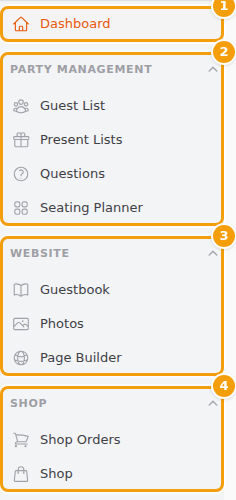
| Menu item | What it is for | Read more |
|---|---|---|
| Guest List | Invite guests, see who is coming, send reminders | The guest list |
| Present Lists | Gift wishes your guests can promise | Gift lists |
| Questions | Ask your guests things, such as who needs a ride | Questions for your guests |
| Seating Planner | Seat guests at tables | Seating plan |
| Tickets | Ticket sales, for ticketed events | Shop and tickets |
| Guestbook, Photos | Messages and photos from your guests | Your party website |
| Page Builder | Your party website | Your party website |
| Shop Orders, Shop | Things guests can reserve | Shop and tickets |
Some items only appear when they apply to your party: Tickets for events with tickets, the Seating Planner once your venue has switched it on and chosen the room, Photos and Guestbook when your venue offers them. If an item you expect is missing, ask your venue.
Your language
The area opens in the language of your party website: Croatian, English or German. To change it, press the language button at the top right and choose another one. What you write for your guests, such as questions and gifts, is kept in the language you write it in; there are extra fields for the other languages of your website.
Help
The ? button at the top right opens the help for the page you are on. You can also search the whole help centre.
What your venue does, and what you do
| Your venue | You |
|---|---|
| Sets up the party: date and time, number of places, deposit and menu | Invite guests and keep the guest list |
| Offers features such as seating, photos, guestbook and tickets, and sets the room for seating | Ask questions, collect gifts and make the seating plan |
| Can open your area to help you | Look after your party website and publish it |