Articles in this topic
Connect your own website (API)
Give your web developer the details they need to show the Clava booking form on your own WordPress website, and learn what happens if you create a new secret key.
7 min read
The API Integration tab is for restaurants that already have their own WordPress website and want the Clava booking form to appear on it. "API" is simply the way two programs talk to each other — here, your website and Clava. Your web developer sets it up with two details from this tab: the ID of your location and a secret key, which works like a password between your website and Clava.
Most owners don't need this tab at all.
Do you need this?
| What you use | Do you need this tab? |
|---|---|
| The website you built in Clava's website editor | No. Its booking page is already connected. |
| The Clava booking page — a link, a button or a QR code | No. See Share your website and booking link. |
| Your own WordPress website, where the Clava booking form should appear | Yes. |
The WordPress plugin is available on the Pro and Ultimate plans — read more below.
What you see on the tab
In Venue Setup, click Configure on your location, then click API Integration. Only administrators can open Venue Setup — see Team roles.
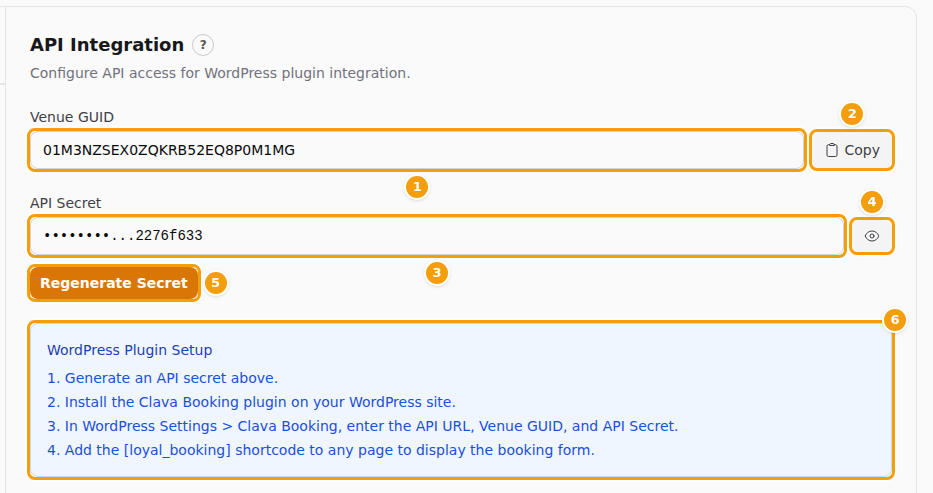
- (1) Venue GUID is the ID of this location. It is not a secret: it is also part of the address of your booking page.
- (2) Copy copies the ID, so you can paste it into an email.
- (3) API Secret is the secret key. Treat it like the PIN of a bank card. The field only shows the last 8 characters.
- (4) The eye button shows or hides the whole key.
- (5) Regenerate Secret creates a new key and makes the old one useless — see below.
- (6) WordPress Plugin Setup is a short list of what the developer does.
Everything on this tab acts straight away. There is nothing to save.
Good to know
Every location has its own ID and its own key. If you have more than one location, check the name at the top left of the tab list before you copy anything.
Create the secret key
A new location has no key yet. The tab then says No API secret has been generated yet. Generate one to enable WordPress plugin integration.
-
Click Generate API Secret (3).
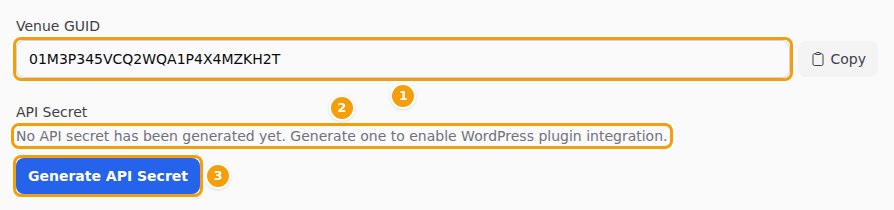
A location without a key: Venue GUID (1), the note that no key exists yet (2) and Generate API Secret (3) -
The key is created at once and a green message appears: API secret generated successfully. The new key is shown in full.
Next to the key you now see the eye button and Regenerate Secret.
Show and copy the key
- Click the eye button (2). The whole key appears.
- Click Copy (3) next to it. The Copy button for the key only appears while the key is shown.
- Click the eye button again to hide the key.

The key is not shown only once. Every administrator of your business can show it again at any time.
Tip
Hide the key again before you share your screen or switch to another location. The tab remembers that the key is shown, and shows the next location's key in full too.
What to send your web developer
Send these three things, and ask your developer to use the Clava Booking plugin for WordPress:
| What | Where you find it |
|---|---|
| The web address of Clava | The address you use to sign in to Clava, but only the first part: from https:// to the end of the domain name — nothing like /settings/... after it. The plugin calls it API URL. |
| The ID of your location | The Venue GUID field. Click Copy. |
| The secret key | The API Secret field. Click the eye button, then Copy. |
Your developer then does this in WordPress. It follows the blue box on the tab, with a test added:
- Install the Clava Booking plugin on your WordPress website.
- In WordPress, open Settings, then Clava Booking, and enter the API URL, the Venue GUID and the API Secret. Then click WordPress's own Save Changes button at the bottom of the page.
- Click Test Connection. The test uses the details that were saved, so save first. If everything is right, it shows Connection successful! Venue: and the name of your location. If not, it shows Connection failed: and the reason.
- Add the shortcode
[loyal_booking]to any page. The booking form appears there.
The bookings guests make through your website are normal bookings. They follow the same rules and the same free times as your other bookings, appear on your team's booking board and send the usual confirmation email.
Careful
Send the secret key in a private message or a password manager — never in a public chat or a group. Anyone who has the ID and the key can make bookings in your name. Send the key separately from the ID if you can.
Don't have the plugin file, or does your developer want to connect something other than WordPress? Ask the Clava team via Support in the menu on the left.
Your plan
The tab itself is open on every plan, and you can create a key on any plan. But the connection only works on plans that include the WordPress plugin: Pro and Ultimate. During a free trial it works too.
On a plan without it, your website's booking form can't book. The tab doesn't warn you, so check your plan first if you plan to use this. Ask the Clava team via Support if you want to change your plan.
Create a new key
Create a new key only if you must — for example, if the old key got into the wrong hands or a developer who knew it has left.
-
Click Regenerate Secret (5 in the picture of the tab). Nothing changes yet. A box opens that asks: Regenerating the API secret will invalidate any existing WordPress plugin integrations. Are you sure?
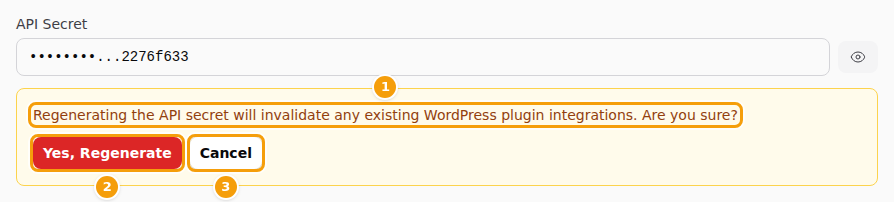
The question before a new key is made: the warning (1), Yes, Regenerate (2) and Cancel (3) -
Click Yes, Regenerate (2) to go on, or Cancel (3) to keep your key.
If you click Yes, Regenerate, the new key is created and shown at once, and a green message appears. The old key stops working immediately. Every website that uses it — and your booking form with it — stops taking bookings until someone enters the new key in WordPress, under Settings, Clava Booking. Bookings that guests already made are not affected.
Careful
Don't create a new key just to try the button, and don't do it on a busy evening. Plan it, and have your developer ready with the new key.
There is no button to switch the connection off. If you want to cut a website off, create a new key and don't give it to anyone.
When the connection does not work
Use Test Connection in WordPress. It shows Connection failed: followed by one of these messages. They are always in English.
| Message | What it means | What to do |
|---|---|---|
| Invalid signature. | The key doesn't fit: it was copied with a stray space, it is an old key from before you made a new one, or the ID belongs to another location. | Copy the ID and the key from this tab again and paste them into WordPress. |
| Venue not found. | The ID is wrong. | Copy the Venue GUID again. |
| API integration not configured for this venue. | This location has no key yet. | Click Generate API Secret on the tab. |
| WordPress plugin feature is not enabled for this venue. | Your plan doesn't include the WordPress plugin. | See Your plan. |
| Request timestamp expired. | The clock of the computer that runs your website is more than a few minutes wrong. | Ask your hosting provider or developer to correct the time. |
| Clava Booking is not configured. Please fill in all required fields. | One of the three fields is empty, or the details were typed in but not saved yet. | Fill in the API URL, the Venue GUID and the API Secret, click Save Changes, then test again. |
If the message is API request failed., or it talks about a connection error, the API URL is probably wrong. Check that it is only the web address of Clava, with no page name behind it.