Articles in this topic
Address and map
Tell Clava where your location is — the address your guests read and the exact spot on the map.
4 min read
The Location tab holds the address of your location and its exact position on the map. Guests read your address on your website, in the confirmation email and on their Booking Details page, and the map on your website helps them find you.
Open the Location tab
- In the menu on the left, click Venue Setup, then Configure on your location.
- In the list of tabs, click Location (1).
You see one of two screens, depending on whether the address search on a map is available:
- A search box with a map and a pin — go to Search for your address on the map.
- A grey note and three boxes you fill in yourself — go to Type the address and the coordinates yourself.
Search for your address on the map
Where the address search is available, the tab shows a box called Search address, a map, and the two numbers Latitude and Longitude. You do not type these numbers — they fill in by themselves.
- Click Search address and start typing your street and your town. Google Maps suggests addresses as you type.
- Click your address in the list. It appears in a grey box under the search box, and the map jumps to the spot and puts a pin on it.
- Check the pin. If it is not exactly right — for example, it points to the other side of the street — drag it to the right spot, or click the right spot on the map. Latitude and Longitude follow the pin.
- Click Save Location. The message Changes saved successfully. confirms it.
Careful
When you move the pin, Clava replaces the address with the address Google Maps finds nearest to the new spot. Look at the grey address box after you move it, and search again if it is not what you want.
Good to know
On this screen, the address is taken from Google Maps exactly as Google writes it — you cannot change the wording. Nothing is saved until you click Save Location; if you close the page first, your search is lost. As long as no position is saved, the map starts over London. That is only where the map starts — it is not your location.
Type the address and the coordinates yourself
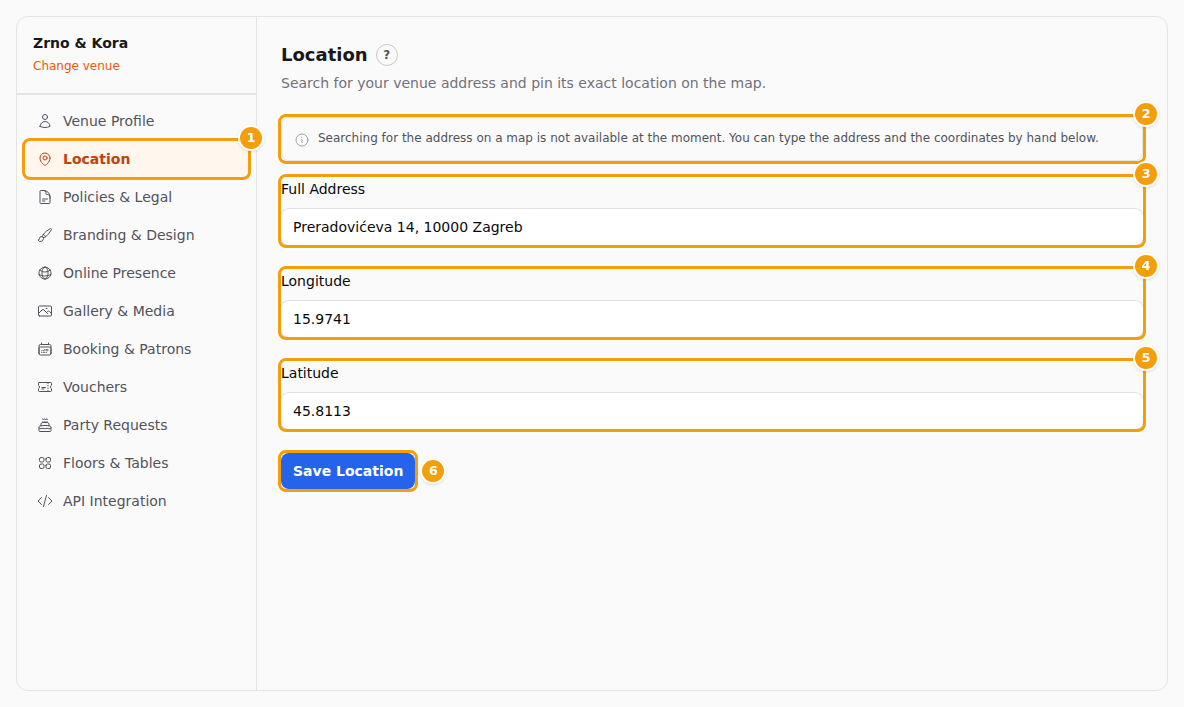
When the address search is not available, a grey note says: Searching for the address on a map is not available at the moment. You can type the address and the coordinates by hand below. Nothing is broken — you simply fill in three boxes yourself (see the picture above). The sentence under the heading still talks about searching on a map; you can ignore it.
- Type your address into Full Address (3), the way guests should read it — for example Preradovićeva 14, 10000 Zagreb.
- Fill in Longitude (4) and Latitude (5). They are the exact position of your location on the map, written as two numbers. To find them, open Google Maps. On a computer, right-click your entrance: a small menu opens, and its first line shows two numbers, for example 45.8113, 15.9741. Click that line to copy it. On a phone, press and hold on your entrance: Google Maps puts a pin there and shows the same two numbers on the screen.
- Type the numbers into the two boxes. In Google Maps the first number is the latitude and the second one the
longitude — but in Clava the Longitude box comes first, so don't paste them in the order you see them:
- Longitude (4): the second number — 15.9741
- Latitude (5): the first number — 45.8113
- Click Save Location (6).
Important
Write the numbers with a decimal point, like 45.8113 — not with a comma. Clava does not check whether the numbers make sense, so if you swap latitude and longitude, your map will point to a completely different place. After saving, look at the map on your website.
Tip
Both numbers are needed for the map. If you type only the address, your guests still see it as text, but the map on your website shows a grey box saying Map not available.
What your guests see
Your website shows the address and the position as they are saved right now, so a change appears on your website right away — you do not need to click Publish.
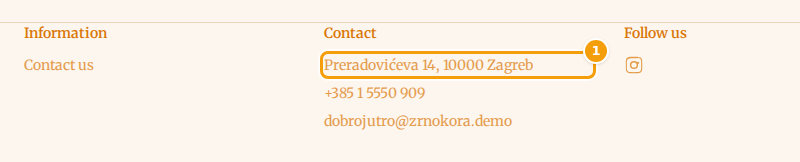
- The address as text appears in the standard confirmation email after an online booking, on the Booking Details page that guests open from it, and on your website: in the Location and Contact sections, and in the footer when you switch on Show contact details in the footer — see Social media and contact details.
- The map appears in the Location section of your website and is placed by your coordinates. Some layouts of that section have no map and show only the address and your contact details. To add the section, see Add a section.