Articles in this topic
Vouchers at a location
Let guests type a voucher code when they book, and hand out vouchers by themselves — a welcome gift after the first visit, a reward every few visits, a thank-you for a review.
7 min read
The Vouchers tab does two things for one location. It lets guests type a voucher code when they book a table. And it can give vouchers to returning guests by itself — for example a free coffee after the first visit, or a reward on every tenth visit, or a thank-you for a review. The guest gets the voucher by email — by default two hours after the visit.
What goes where
Vouchers are set up in two places, and it helps to know which is which:
- Marketing → Vouchers (in the menu on the left) is where you make your vouchers. For automatic vouchers you make a template there: a blueprint that says what each guest receives and for how many days it is valid. This one is for all your locations together.
- Venue Setup → Vouchers (this tab) is per location. Here you switch voucher codes on or off for the location, and you say when a template is handed out.
The chain is always the same: you make a template, you add a rule here that points at it, your team marks guests as arrived, and Clava emails the voucher to the guest.
Everything about making vouchers, giving them to guests and honouring them at the table is in Vouchers.
Let guests type a voucher code
- In Venue Setup, click Configure on your location, then click Vouchers.
- Switch on Accept voucher codes on booking form (1).
- Click Save Voucher Settings. A green message, Changes saved successfully., confirms it.
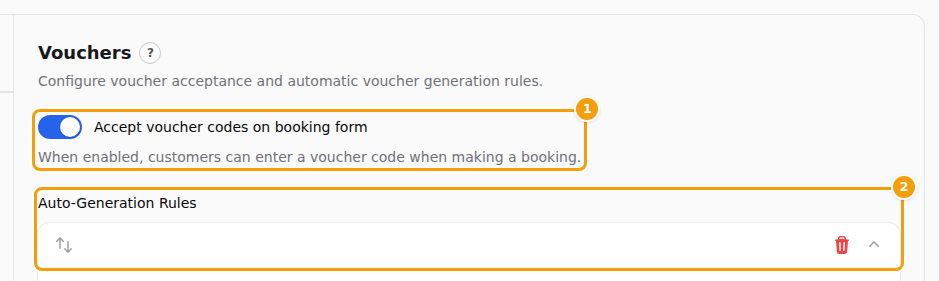
From now on the last step of your booking form, Step 3: Your Details, has a Voucher Code box (1) with an Apply button (2). A guest who types a valid code sees Voucher applied successfully!, and your team sees the voucher on the booking.

The box appears wherever guests book online for this location: your booking page, the booking widget and the booking page of your website. If you switch the setting off, the box disappears.
Important
This one switch also controls the automatic vouchers described below. With Accept voucher codes on booking form switched off, Clava gives out no automatic vouchers at this location — even when you have rules set up. To pause just one rule, use that rule's own Enabled switch instead.
Good to know
Table bookings have no price, so nothing is deducted online. Your team honours the voucher at the table. The discount and the code are shown on the booking so that nobody has to ask the guest.
Make a voucher template first
An automatic voucher is always a copy of a template. Without an active template you cannot save a rule, because the template list stays empty.
- In the menu on the left, under Marketing, click Vouchers.
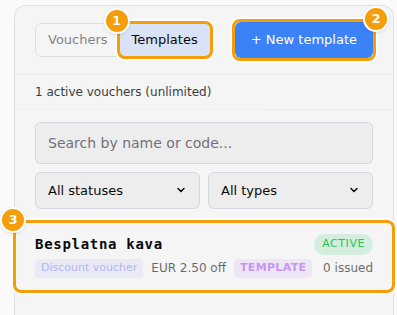
- Click Templates (1) at the top of the list, then + New template (2).
- On the tab Basics leave Template ticked and choose the type: Discount voucher (each guest gets a single-use code) or Gift card (each guest gets a card with a balance — this choice only appears on the Ultimate plan or during a free trial). Under Validity (days) enter how many days each voucher stays valid.
- On the tab Content & Translations type a name in the first language tab — the box with the red star. On Discount & Rules set the discount (for a gift card: the Initial Balance), and optionally Vouchers this template may issue — leave it blank for no limit.
- Click Create template. It now appears in the list (3) and in the template list of every rule.
On the tab Venues you can limit a template to certain locations. Leave all locations unticked and it works at all of them.
Careful
The rule list shows the templates of all your locations. If a template is limited to another location, the voucher it creates is not accepted here — the guest is told that the voucher is not valid at this location. Choose a template that works at the location you are setting up.
Add an automatic voucher rule
A rule says: when a guest reaches this visit, give them a voucher from this template. You can add as many rules as you like.
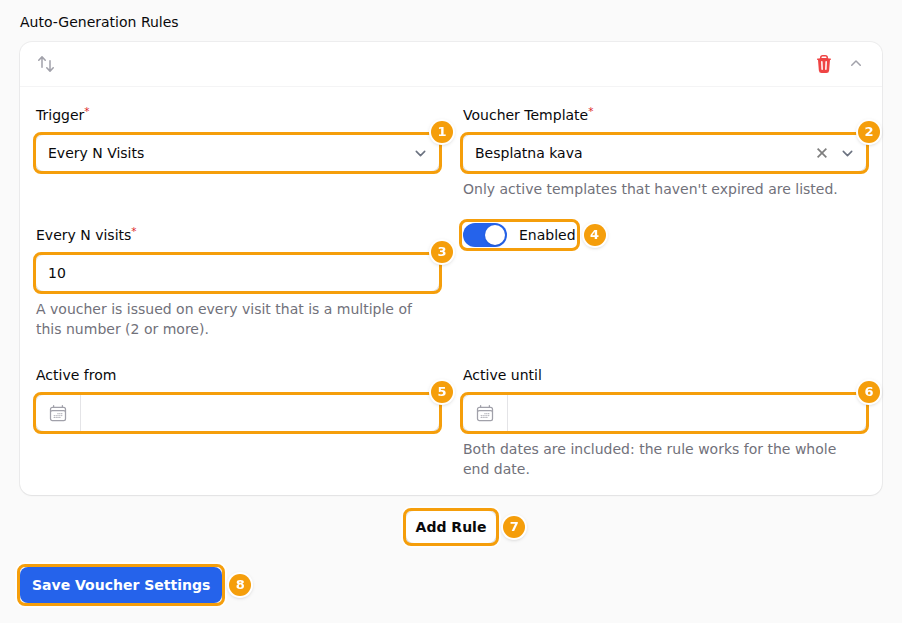
- On the Vouchers tab, click Add Rule (7). An empty rule appears.
- Choose the Trigger (1) — when the voucher is handed out. The table below explains the four choices.
- Choose the Voucher Template (2). Only active templates that have not expired are listed.
- If the trigger needs a number, fill it in: Every N visits (3) for the trigger Every N Visits, or the visit counts for Milestone Visits (shown further down).
- Optional: set Active from (5) and Active until (6) if the rule should only run for a while. Both days count — the rule works for the whole last day. Leave them empty and the rule runs until you stop it.
- Keep Enabled (4) switched on. Switch it off to pause the rule without deleting it.
- Click Save Voucher Settings (8).
Save stores the switch and all rules together. If a required field is empty or wrong, a red message appears under it and nothing is saved — not even the switch. For example, Every N visits must be 2 or more, and the visit counts for milestones must be whole numbers separated by commas.
The four triggers
| Trigger | The voucher is given | Example |
|---|---|---|
| After First Visit | on a guest's first visit | A welcome coffee for new guests |
| Every N Visits | on every visit that is a multiple of the number — N must be 2 or more | N = 5: the 5th, 10th, 15th visit … |
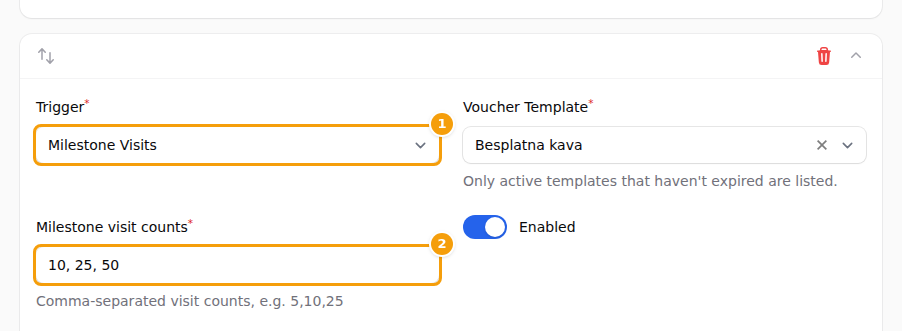
| Milestone Visits | only on the visits in your list | 10, 25, 50: the 10th, 25th and 50th visit |
| After a Review | when the guest sends the review form for a visit — whatever the rating | A thank-you coffee for guests who review you |
For Milestone Visits, type the visit counts in the box Milestone visit counts (2), separated by commas. Spaces are fine: 10, 25, 50.
After a Review needs no number. After a visit Clava asks the guest for a review (when feedback requests are switched on for the location, see Guest feedback and reviews); the voucher is given as soon as the guest sends the form, and the rating does not matter. A guest is rewarded once for each booking they review. With such a rule, the review email and the thank-you page tell the guest that a voucher is coming.
More options for a rule
Under the trigger every rule has a few more fields. Their defaults keep a rule simple, so you only change them when you need to:
| Field | What it does |
|---|---|
| Send after (hours) | How long after the visit (or the review) the voucher is sent. A new rule starts at 2 hours; 0 sends it at once. The voucher is only sent if the booking is still marked as arrived by then and the rule is still switched on. |
| Maximum per guest and Within the last (days) | The most vouchers one guest gets from this rule, for example 1 within the last 30 days. Leave Maximum per guest empty for no limit. The days field appears once you enter a maximum; leave it empty to count every voucher ever given. Addresses that differ only by a +tag, or by dots in a Gmail address, count as one guest. |
| Priority | Only matters with One reward voucher per visit (below): when several rules apply at the same moment, the highest number goes first. |
| Only guests who agreed to marketing | A guest who did not tick the marketing consent when booking gets no voucher from this rule. |
On this tab there is also the switch One reward voucher per visit. With it on, a guest gets at most one automatic voucher for each visit, even when several rules would reward it — for example a first-visit voucher and a review voucher. The rule with the highest Priority wins, and a review that comes after the visit has already earned a voucher gets no second one. The switch is on for locations you add from now on, and off for locations that existed before; switch it on there if you want it.
When a visit counts
Clava counts a visit when your team marks the booking as arrived. In Booking Management that works like this:
- Restaurant calendars: on the Floor Dashboard, switch to List and press Arrived next to the booking.
- Capacity calendars: on the Booking Board (your location's name in the menu on the left), move the booking into the Used column.
A voucher is only given when all of this is true:
- The booking is marked Arrived / Used. Bookings that are only Booked, Late, Canceled or No Show never count.
- The booking has a valid email address. Walk-ins without one get nothing, because there is nowhere to send the voucher (the attempt still shows in the list of automatic issues).
- Accept voucher codes on booking form is switched on for this location, and your plan includes vouchers.
- The rule is Enabled and today is between Active from and Active until.
- The template can still give out vouchers: it is active, it is inside its own dates and it has not reached its limit.
- The guest has not already received this reward. The first-visit voucher is given only once per guest, and each milestone only once — even if the rule was changed or deleted since. If you set a Maximum per guest, it is not used up yet.
Good to know about the counting:
- Guests are recognised by their email address, at this location only. Capital letters and spaces make no difference. Two locations of the same business count separately.
- Earlier visits count too. If a regular already has four visits marked as arrived, the next one is visit 5 — even if those visits happened before you made the rule.
- Clava works in the background. With Send after (hours) at 0 the voucher and the email usually arrive within a minute; a new rule waits 2 hours. If you mark a booking by mistake and correct it later, a voucher that was already sent is not taken back.
What your guest receives
The guest gets an email with the voucher code, the last day it can be used (with the weekday) and a link View my voucher. The voucher belongs to the guest's email address, and the email says so. A discount voucher can be used once; a gift card can be used until its balance is spent. It is valid from the day it is given for the number of days you chose in the template.
The guest uses it by typing the code in the Voucher Code box on the next booking, or by showing it on the next
visit. Because the voucher belongs to an email address, the guest must book with the same email address the
voucher was sent to — with another address the code is refused. A +tag or dots in a Gmail address make no
difference.
The email is called voucher.auto_generated. To change its wording, click Email Templates in the menu on the
left, choose your location in the Venue box at the top, and look under the heading VOUCHER. Your changes
apply to that location only. The email is sent from the location the booking was made at, in the language of the
booking.
When a guest gets nothing
If a rule cannot give out vouchers at all — for every guest — Clava tells you with an orange line under the rule:
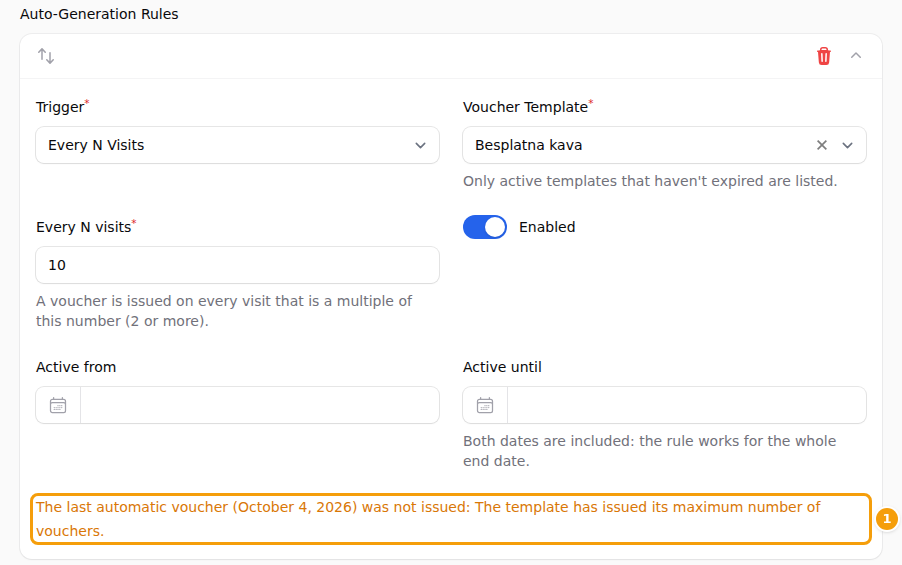
The line says which day it last tried and why it failed, for example The template has issued its maximum number of vouchers. The usual reasons are:
- The template is suspended, has expired, was deleted, or has not started yet.
- The template has given out its maximum number of vouchers.
- The template period has ended, or a gift card template has no amount.
- Your plan does not allow this kind of voucher. Gift cards need the Ultimate plan.
The line disappears by itself after you change the rule or its template, or after the next voucher was given successfully. It is not shown for reasons that concern one guest only — such as a booking without an email address, a guest who already got the reward, or one who reached the maximum — and not when vouchers are switched off for the location or your plan has no vouchers.
To see every attempt, open Marketing → Vouchers, click Templates, open the template and choose the tab Automatic issues. It lists the latest 50 vouchers the template gave out through your rules, and the attempts that were skipped, with the reason. Each row also says whether the email was sent, is still waiting or failed. A failed email can be sent again with Resend, and Clava tries a failed email again by itself a few times.
If your plan has no vouchers
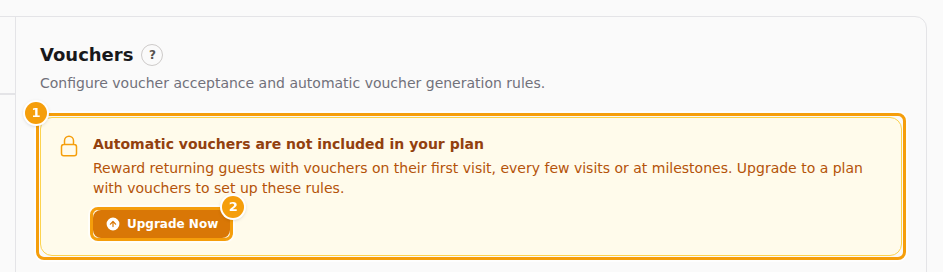
Vouchers are part of the Pro and Ultimate plans, and of a free trial. On a plan without vouchers the whole tab is replaced by a yellow box (1): Automatic vouchers are not included in your plan. Its Upgrade Now button (2) takes you to the page where you choose a plan. There is nothing to save on this tab until you upgrade.
Good to know
If your plan ends or you move to a plan without vouchers, your rules stay as they are but stop giving out vouchers, and guests no longer see the Voucher Code box. Moving from Ultimate to Pro also stops gift cards; discount vouchers keep working.
Good to know
- Remind your team to mark guests as arrived. If nobody does, nobody ever gets a voucher.
- Try it yourself. Make a booking with your own email address, mark it as arrived and wait a minute: the email should reach you. The voucher counts as one of the template's vouchers.
- One rule per trigger and template. You cannot have two rules with the same trigger and the same template at one location — the second silently replaces the first. For several rewards, use a different template for each, or use one Milestone Visits rule with several numbers.
- Changing the trigger or the template of a rule starts a new rule. The old rule is deleted, but the list of automatic issues keeps what it did, and guests who already got a reward do not get it a second time. Vouchers still waiting for their Send after time are dropped with the old rule. To pause a rule, switch Enabled off instead.
- The red bin removes a rule at once on the screen, with no question asked — but it is only really deleted when you click Save Voucher Settings. Clicking Change venue or reloading the page drops what you have not saved; see Save your work.
- Only administrators can open Venue Setup. See Team roles.