Articles in this topic
Team roles
What administrators, editors and readers can open and change — and how to add someone to your team, change their role or remove them.
5 min read
Everyone on your team has one of three roles: administrator, editor or reader. The role decides which areas of Clava a person can open and what they can change there.
At a glance
| Administrator | Editor | Reader | |
|---|---|---|---|
| See bookings and calendars | Yes | Yes | Yes |
| Make, change, move and cancel bookings | Yes | Yes | No |
| Check a voucher | Yes | Yes | Yes |
| Redeem a voucher or give one to a guest | Yes | Yes | No |
| Open Party Management (parties and events) | Yes | Yes | Yes, but only to look |
| Change parties and events | Yes | Yes | No |
| Open Configuration (venues, menus, emails, plan) | Yes | No | No |
| Edit and publish the website | Yes | No | No |
| Add people to the team and change their role | Yes | No | No |
| Change your own password, profile and language | Yes | Yes | Yes |
| Area you land in after signing in | Configuration | Booking Management | Booking Management |
Party Management appears in the area button only when your plan includes parties and events (see Plans and billing).
Administrator
Administrators run your business in Clava. After signing in they land in Configuration, and they can open Booking Management and Party Management too. Only administrators can:
- change and publish your website in the website editor,
- set up venues, booking calendars, menus, offers and email templates,
- add people to the team, change their role and remove them,
- choose a plan, fill in the billing details and see invoices.
Tip
Give the administrator role only to people who really need it — for example the owner and the manager.
Editor
Editors work with bookings every day. After signing in they land in Booking Management, where they see the calendars and can make, change, move and cancel bookings, redeem vouchers and send messages to guests. They can also change parties and events in Party Management. They can't open Configuration, so they can't change the website, the venue setup or the team.
Reader
Readers are for people who only need to know what is going on — for example who is coming today. After signing in they land in Booking Management and can look at everything there: the calendars, the bookings and their details, the messages and the figures. In Party Management they can look at parties, guest lists, events and requests. The Clava staff app on the phone works the same way. Readers can also check a voucher (look up a code to see whether it is valid and what is left on it), and change their own password, profile and language.
A reader can't change anything else: no making, editing, moving, cancelling or deleting bookings, no check-in or change of status, no redeeming or giving vouchers, no sending messages, and nothing in parties, guest lists, menus, seating plans, events, tickets or the shop.
Clava enforces this on its server, not only on the screen. In the screens, buttons that would change something are hidden or greyed out, with a note saying why. If a reader still manages to try — from an old page that was open, or from the staff app — Clava refuses and says: "Your access level (Reader) can only view."
Tip
Someone who has to change bookings needs the Editor role. An administrator changes it in User Access (see Change someone's role or remove them).
Important
Only administrators can open Configuration, including the website editor. When an editor or reader opens a link to it, Clava takes them to Booking Management instead.
Add someone to your team
You need to be an administrator to do this.
-
Sign in and go to Configuration.
-
In the menu on the left, under Brand, click User Access. The page lists everyone who has access to your business.
-
Click Add user (1).
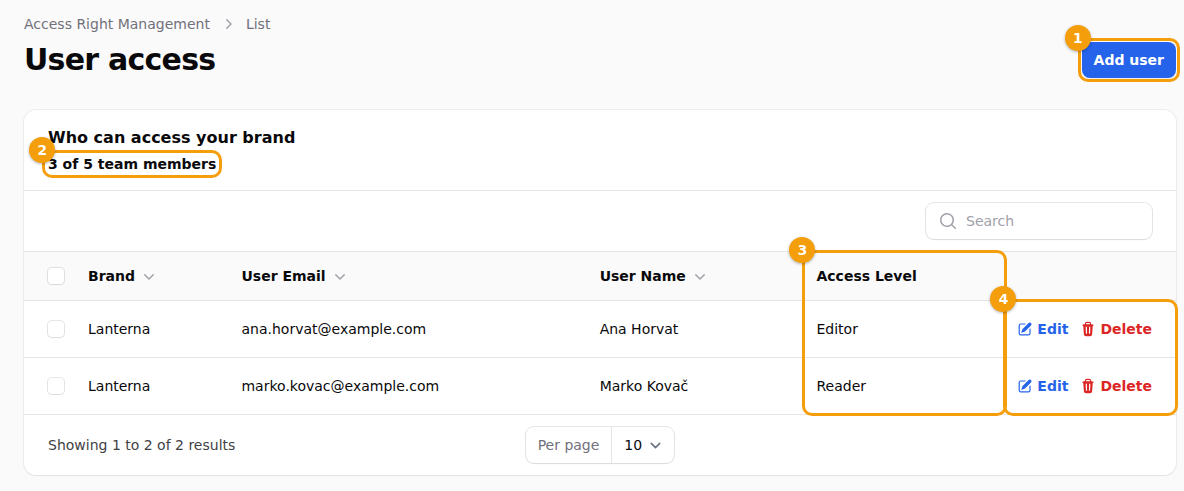
The list of people with access: Add user (1), the team size (2), the Access Level column (3) and Edit and Delete (4) -
Fill in User Name and User Email.
-
Type a first password in Initial Password (2). It has to follow the rules for a good password.
-
Choose their role in Access Level (3): Admin, Editor or Reader. Which roles are on offer depends on your plan (see How many people your plan includes).
-
Click Create (4).
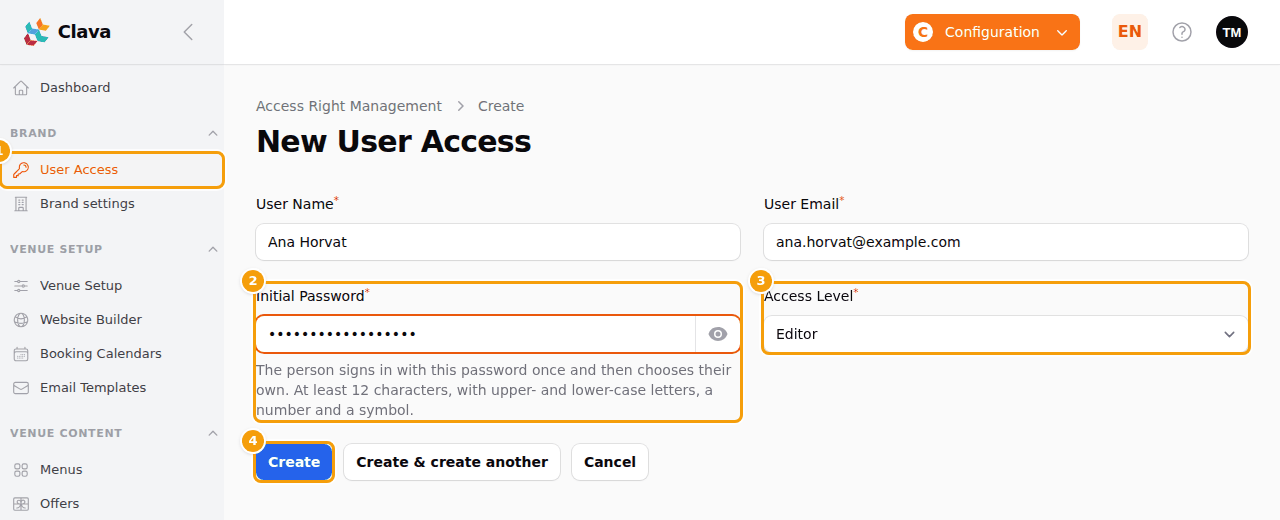
Adding a colleague: User Access in the menu (1), the initial password (2), the Access Level (3) and the Create button (4) -
Tell the person three things yourself: the email address you entered, the first password, and where to sign in (see Sign in to Clava).
Important
Clava does not send the initial password by email and does not keep it anywhere you could look it up. Give it to the person in person or by phone, not in a message other people can read.
The person signs in with that password once. Clava then asks them to choose their own password before they can open anything else (see Your first sign-in), so you never need to know it.
Someone who already has a Clava account — for example because they work for another business — keeps their own password. The field is still required, but what you type in it is not used, and they can sign in as always.
Change someone's role or remove them
- Open User Access in the Brand menu.
- To change a role, click Edit next to the person, choose another Access Level and save. Name and email can't be changed here. Which roles you can choose depends on your plan (see How many people your plan includes).
- To remove someone, click Delete next to the person and confirm. As soon as you confirm, they can no longer open your business. Their own account is not deleted, so if they work for another business they keep access to that one.
You don't see yourself in the list — you can't change your own role or remove yourself.
How many people your plan includes
Your plan decides how many people can have access to your business, and which roles you can give them:
| Free | Pro | Ultimate | |
|---|---|---|---|
| Team members (you included) | 1 | up to 5 | no limit |
| Roles Editor and Reader | — | Yes | Yes |
You are counted too: on Pro, you and four more people fill the five places. More about the plans in Plans and billing.
Clava enforces these numbers — adding a person simply doesn't work beyond them:
- User Access shows how many places you use, for example 3 of 5 team members, above the list.
- When all places are taken, Add user is greyed out and the page says so, with a link Choose a plan. Free up a place by removing someone (see Change someone's role or remove them), or choose a larger plan.
- Editor and Reader are part of Pro and Ultimate. Without them, Access Level offers Admin only.
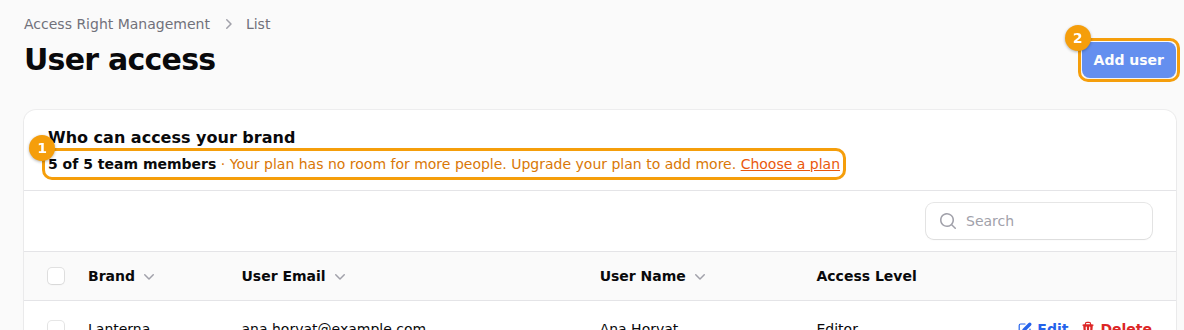
Good to know
When your plan gets smaller — you move to a lower plan, or your free trial ends — nobody is removed and nobody loses access. People who are already in keep their role. You just can't add anybody until you are below the limit again, and you can't give an existing person a different Editor or Reader role; Admin is always possible. The page then shows more people than places, for example 3 of 1 team member. See also What happens to your team on a smaller plan.
On the dashboard, the step Invite your team reminds you to add your colleagues (see The dashboard).
Working for more than one business
If you work for more than one business in Clava, you can have a different role in each one. Pick the business with the drop-down in the top bar of the screen; what you can do then follows your role in that business (see Your profile).
Configuration is for administrators. Say you administer one business and only read or edit another, and you open Configuration while the other one is selected. Clava does not show you its settings. It switches to the business you administer and tells you: Configuration shows a brand you administer: the brand you were working on is open to you in Bookings. The business you were working on stays open for you in Booking Management.