Articles in this topic
Where guests see your offers
How an offer appears while a guest books a table, in the offers section of your website and on your team's bookings — plus what to check when a guest says they cannot see an offer.
6 min read
Guests meet your offers in two places: while they book a table, and in the Offers section of your website. Your team sees the offer a guest chose on the booking. This article shows each place, and ends with a checklist for the day a guest says "I can't see your lunch offer".
While the guest books
Guests book on the Booking page of your website, on your standard booking page, or in the booking widget you embed on another website — see The booking page. All of them use the same form, and so do the offers:
- Step 1: Select Date & Guests. The guest picks a date and the number of guests and taps Check Availability.
- Step 2: Select Time. The guest picks a start time. Times read 7:30 PM in English and 19:30 in the other languages.
- Clava checks your offers against that date, time and group size. If at least one fits, a step appears under the times: Step 3: Select Offer. Each offer is a card with its name, its description and a line with the deal — 15% off, €5.00 off or Special price: €24.00. The last card is always No Special Offer — Continue with regular booking.
- The guest taps a card. The form moves on to Step 4: Your Details, and the offer is booked together with the table.
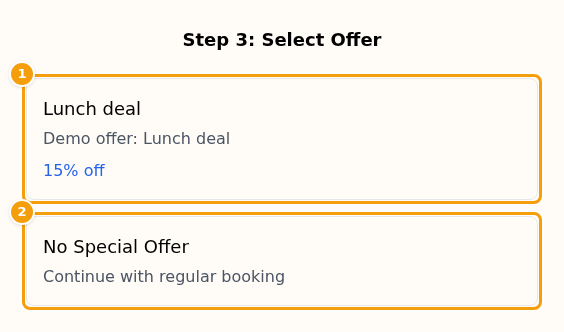
If no offer fits, there is no offer step at all. The guest goes straight to the details — then called Step 3: Your Details — and books as usual. The guest never sees offers that do not fit the chosen date, time and group — see When Clava offers an offer to a guest.
A guest takes one offer per booking, and it costs nothing extra to choose it: a table booking has no price, so the offer is only written on the booking for your team to honour.
Good to know
The guest reads the name and description in the language they are using, when you have written the offer in that language (the language tabs of the offer — see Create an offer). Otherwise they read the text of the location's main language. The small texts around them — Select Offer, No Special Offer, off — always follow the language the guest has chosen. The same goes for the offers on your website.
Important
Guests see offers while booking only on the Pro or Ultimate plan, or during the free trial. On the Free plan the booking page and the booking widget skip the offer step, and no offer is attached to a booking. See Offers on your plan.
If the guest changes their mind
A guest may choose an offer and then go back and change the date, the number of guests or the time. Whichever of the three changes, the choice is cleared and Clava checks the offers again for the new date, time and group size. If some fit, the guest sees them and chooses again; if none fits, the guest simply goes on to the details.
If an offer stops fitting after all (for example because you changed or switched it off while the guest was booking), Clava does not make the booking. The guest reads The offer you chose is not available for this date, time and number of guests. and The offer was removed: you can complete the booking without it, or go back and choose another offer. — and can finish the booking without the offer or pick another one.
Offers and vouchers
A voucher can be set to not work together with offers. When a guest has chosen an offer and then types such a voucher code, Clava refuses the code: This voucher cannot be combined with an offer. The guest can book with one or the other. Where to set this: see Vouchers at a location.
On your website
The Offers section lists your offers on any page of your website. It needs the Pro or Ultimate plan, or the free trial. On the Free plan the section stays empty — guests only read No offers available at this time. See Offers on your plan.
To show your offers:
- In the website editor, add a section of the kind Offers — see Add a section.
- Under Section Title, type a heading such as Today's specials. Leave it empty and the page says Special Offers.
- Choose a layout with Change Template: Cards, List or Featured (the first offer big, the others as small cards).
- Under Display Mode, choose Auto (by date) or Manual (pick specific):
- Auto (by date) shows offers by their dates. Tick Current Offers (running today), Future Offers (starting later) and Past Offers (already ended) as you like. Only Current Offers is ticked at first.
- Manual (pick specific) lets you tick exactly the offers to show, from a list that says for each one whether it is Active, Upcoming or Expired.
- With several locations, Data source lets a section show the offers of another location — see Show another location's information.
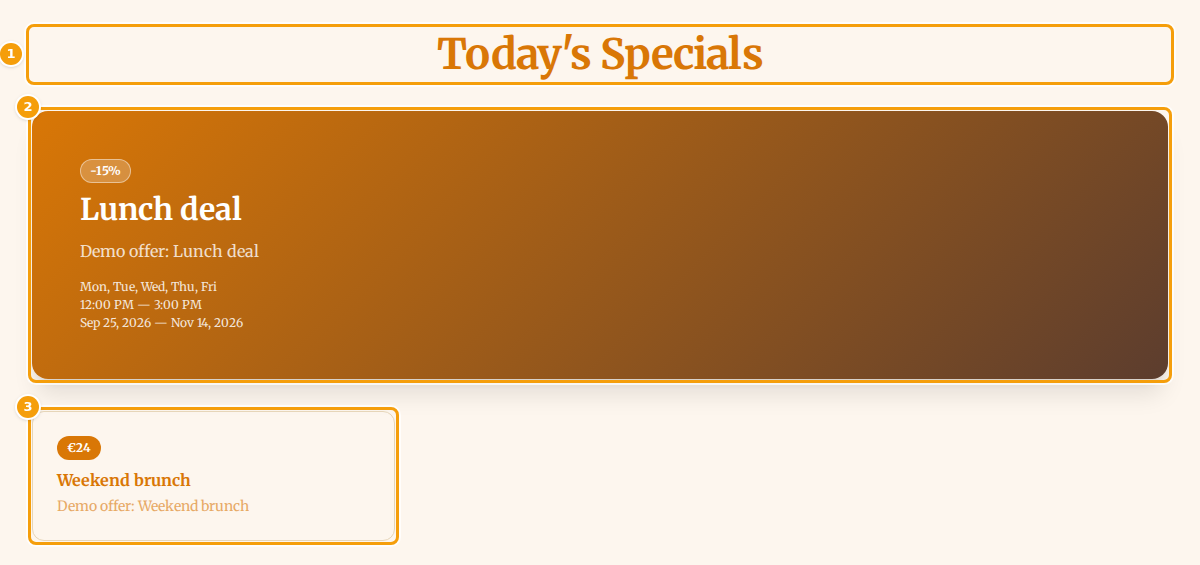
Each offer shows a coloured label with the deal, its name and its description. In the list and cards layouts, and for the big first offer, the days, the hours and the dates appear in small print below. An offer that has ended is marked Expired, one that has not started yet Coming Soon.
Everything is written the way the language of the website writes it:
- The deal — -15% in English (−15 % in Croatian, -15 % in German), an amount off such as -€5, or the price such as €24 — in the currency of the offer's location, written the way the language writes it (24 € in Croatian and German).
- The dates — Sep 25, 2026 — Nov 14, 2026. An offer with a first date but no last date reads Sep 25, 2026 — Ongoing.
- The hours — 12:00 PM — 3:00 PM. Only English uses AM and PM; the other languages show 12:00 — 15:00.
- The days — Mon, Tue, Wed, Thu, Fri, in the language of the website.
In the Featured layout the big first offer sits on the coloured card, so its days, hours and dates are written in white to stay readable.
Good to know:
- Archived offers never show, in either mode. See Archive, restore and reuse offers.
- The section lists offers by their dates only. It does not check the weekday, the hours or the group size — they are just shown as information. The same offer is offered while booking only when they fit. An offer with no dates counts as running today, so it is listed under Current Offers.
- Switched-off offers never show either. Switch an offer off (or archive it) and it disappears from the section.
- Nothing to publish. Offers in this section come straight from your list of offers: change an offer and your live website follows. See Draft and live website.
- The section has no booking button. Add a Booking or Booking CTA section next to it.
For your team
The offer a guest chose is saved on the booking. Your team sees its name on the booking in Booking Management, and it is listed in the printed booking report.
When your team makes or changes a booking, the Special Offer box lists your location's switched-on offers. Your team can pick any of them: for them the date, hour and group size are not checked, because they decide what they agree with the guest.
Where offers do not appear
- The confirmation email does not mention the offer.
- On the Free plan guests see no offers at all: not while booking, in the booking widget or on your website.
- Archived and switched-off offers are never offered while booking.
"A guest can't see my offer"
Check in this order. All of these must be true for the date, time and group size the guest chose:
- Your plan shows offers to guests: Pro, Ultimate or the free trial. On Free there is no offer step — see Offers on your plan.
- The offer is switched on (Active) and not Archived — the list says Live or Scheduled, not Switched off or Archived.
- The offer belongs to the location where the guest books.
- The booked day lies between Offer Start Date and Offer End Date. A status of Ended or Scheduled explains many cases.
- The booked weekday is among the Available Days.
- The start time the guest picked is between Available From and Available Until. A guest who picks 3:15 PM does not get a 12:00 PM – 3:00 PM offer.
- The group size fits: at least the Minimum Group Size and at most the Maximum Group Size. An empty box sets no limit, so you can fill in only one of them.
Tip
Test it as a guest: open your booking page in a private browser window, choose a day and a time that should have an offer, and look for Step 3: Select Offer. Stop before you book — or book with your own email address and cancel it.