Articles in this topic
Create an offer
Make a new offer step by step — choose the location, name it, pick the deal, say on which days, hours and group sizes it applies, and save. Includes the rules Clava uses to decide whether a guest is offered it.
7 min read
A new offer needs a location, a name, the deal itself and the days and hours when it applies. This article goes through the form from top to bottom. The last section explains exactly when Clava offers an offer to a guest — read it once, it answers most questions.
Start a new offer
- In the menu on the left, under Venue Content, click Offers. See What offers are for if you can't find it.
- Click New Offer. The form opens; the list is hidden until you save or go back. If your plan has no place left for another offer, a warning appears instead — see Offers on your plan.
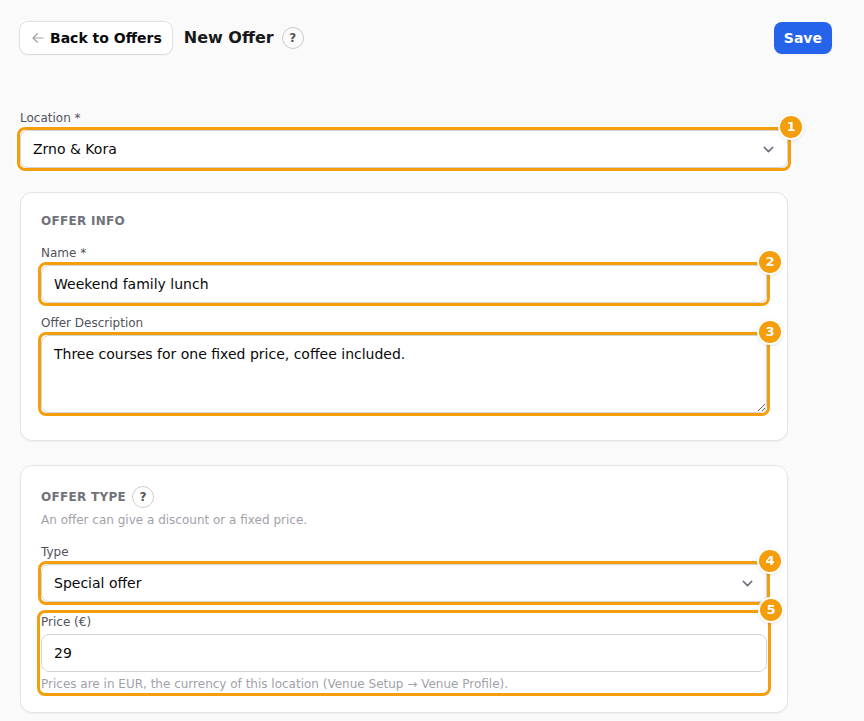
- Under Location (1), choose the location the offer is for. The offer belongs to this location only. Your guests see it only when they book at this location.
- Type a Name (2). Guests read it, so make it short and clear — Weekday lunch, Sunday brunch.
- Optional: write a few words under Offer Description (3) — what is included, any small print. Guests read it under the name.
Good to know
The name and description you type first are in the main language of the location (its Venue Profile). If the location also offers other languages, a row of language tabs appears above the name: open a tab and write the name and description in that language. Guests read the offer in the language of the page they are on. A language you leave empty shows the text of the main language instead, so an offer works from the first day and you can translate it later. Clava does not translate the words for you.
Choose the deal
Under Offer Type — An offer can give a discount or a fixed price. — the box Type (4) says what kind of deal this is. Below it, one box appears for the type you choose:
| Type | The box that appears | A guest reads |
|---|---|---|
| Amount off | Discount Amount — a sum taken off, for example 5 | €5.00 off |
| Percentage off | Discount Percentage — for example 15 | 15% off |
| Special offer | Price — a fixed price, for example 24 | Special price: €24.00 |
The currency is not chosen in the offer. The sign in brackets next to the box (5) is the currency of the location you picked under Location, and the line under it says so. To change it, click Venue Setup, then Configure at the location, and use Currency on the Venue Profile tab — see Currency. Changing the currency changes only the sign: the amounts stay as you typed them.
The amount box is optional, but without it guests see only the name and description, no deal line. Fill it in for a percentage, an amount or a price. If you change the Type later, the number of the old type is not kept.
Say who and when
The last two cards of the form decide when the offer applies.
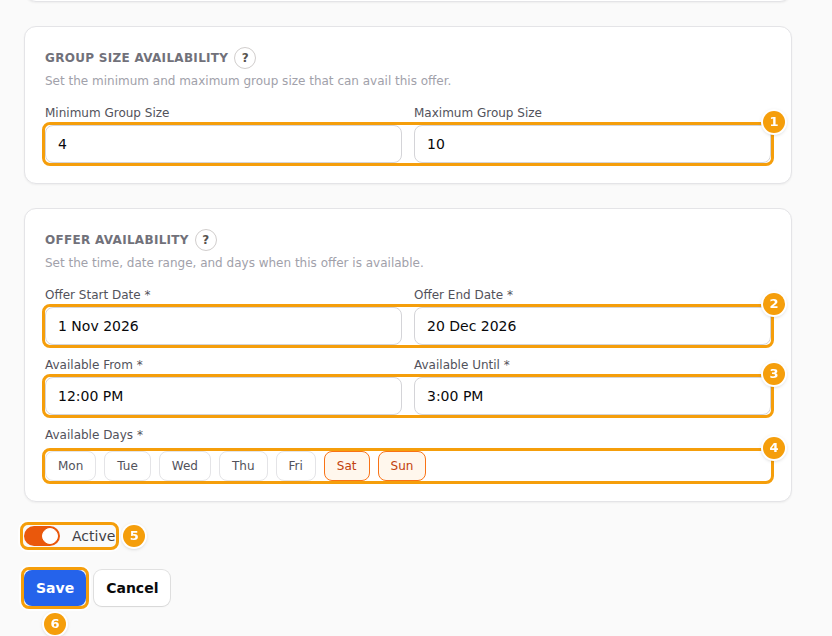
- Under Group Size Availability (1), type a Minimum Group Size and a Maximum Group Size if the offer is only for certain groups — for example 4 and 10 for a family lunch. For every group size, leave both empty.
- Under Offer Availability, choose the Offer Start Date and Offer End Date (2): the first and the last day the offer can be booked for. Click the box: a calendar opens, and you click the day. Both dates are optional: leave the start date empty and the offer is available right away, leave the end date empty and it runs until you switch it off — an offer for all year round needs no dates at all.
- Choose Available From and Available Until (3): the hours of the day. Click the box and set the hour and the minutes in the small time picker.
- Click the days in Available Days (4) to select them. A selected day is outlined in orange. Select all seven for an offer that applies every day.
- Keep Active (5) switched on if the offer should work as soon as you save.
- Click Save (6).
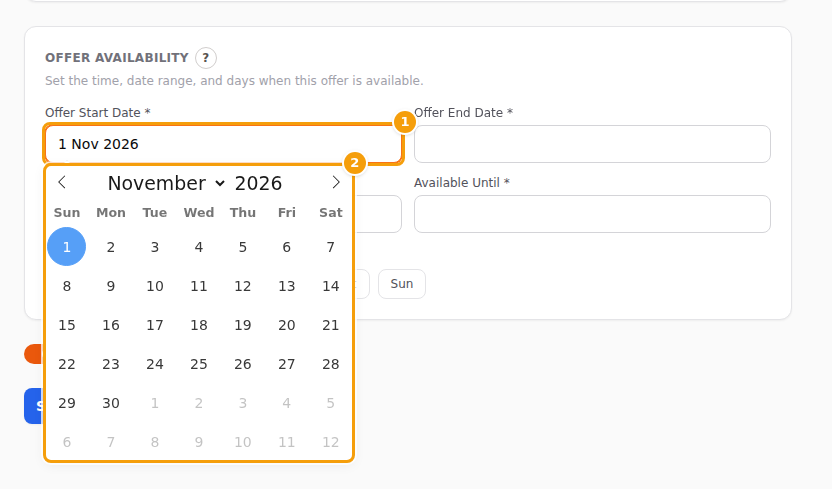
Dates and times are written the way your language writes them, in the box and in the picker: 5 Oct 2026 in English, 5. 10. 2026. in Croatian, 05.10.2026 in German. Hours are shown with AM and PM in English (7:30 PM) and on the 24-hour clock in the other languages (19:30).
Good to know
The Free plan has no date ranges and no weekdays. There the form shows a locked note instead of the dates and the days — On your plan an offer runs every day, without a date range. Date ranges and weekdays are available on Pro and Ultimate plans. — and a new offer runs every day, within the hours you choose. An offer that already has dates and weekdays keeps them. See Offers on your plan.
Good to know:
- Location, name and hours are required (they carry a star), and on the Pro and Ultimate plans so are the days. The dates, the description and the group size are optional.
- The dates are optional. An offer without dates is open-ended: it is live from the moment you save it until you switch it off or archive it. When you give both, they both count: for a one-day offer, choose the same day twice, and the end date may not be before the start date. (The copy of an offer that has ended is the exception: its old dates are cleared and you choose new ones, so it does not run for ever by accident.)
- The hours are about the time the booking starts, not how long the guests stay. With 12:00 PM to 3:00 PM, a booking for 3:00 PM gets the offer and one for 3:15 PM does not. Available Until must be later than Available From.
- The dates are the dates of the table, not the day the guest books. A guest who books today for a Friday in November is judged by that Friday.
Tip
You can fill in just one of the two boxes: only a Minimum Group Size means "from this many guests", only a Maximum Group Size means "up to this many guests". Leave both empty for any group.
When Clava offers an offer to a guest
While a guest books, Clava looks at the date, the time and the number of guests, and offers only the offers for which every one of these is true:
| # | The offer must be… |
|---|---|
| 1 | Switched on (the Active switch is on) and not archived. |
| 2 | An offer of the location where the guest is booking. |
| 3 | Valid on the booked day: the day is between the start and the end date, both days included. |
| 4 | Valid on that weekday: the weekday is one of the Available Days (an offer without days runs every day). |
| 5 | Valid at that time: the booking's start time is between Available From and Available Until, both included. |
| 6 | Right for the group: at least the minimum and at most the maximum number of guests (both included). |
Every limit counts on its own, and an empty box sets no limit. An offer with only a start date applies from that day on, with only an end date until that day, with only Available From from that time on and with only Available Until up to that time. The same goes for the group size.
One more thing has to be true before a guest sees any offer: your plan must show offers to guests (Pro, Ultimate or the free trial — see Offers on your plan).
If two or more offers fit, the guest sees all of them and chooses one. A booking takes one offer. If none fits, the guest is not asked at all and books as usual. More in Where guests see your offers.
Good to know
The Status in the list looks only at the Active switch and the dates — see the status labels. A Live offer is still not offered on a weekday or at an hour you did not choose for it.
Save, and what happens next
Click Save at the bottom of the form, or the Save button at the top right. A green message Offer saved. appears and you are back in the list, where the offer is marked Live (today is inside its dates) or Scheduled (its first day is still ahead). Switched-on offers work at once; there is nothing to publish.
To leave without saving, click Cancel or Back to Offers. If you changed something, a window Unsaved Changes asks what to do: Save & Continue, Discard & Continue or Go Back (stay in the form).
Tip
Want to prepare an offer and not show it yet? Switch Active off before you save. The list says Switched off, and guests do not see it when booking. Switch it on later. See also Pause an offer.
If Clava does not save the offer
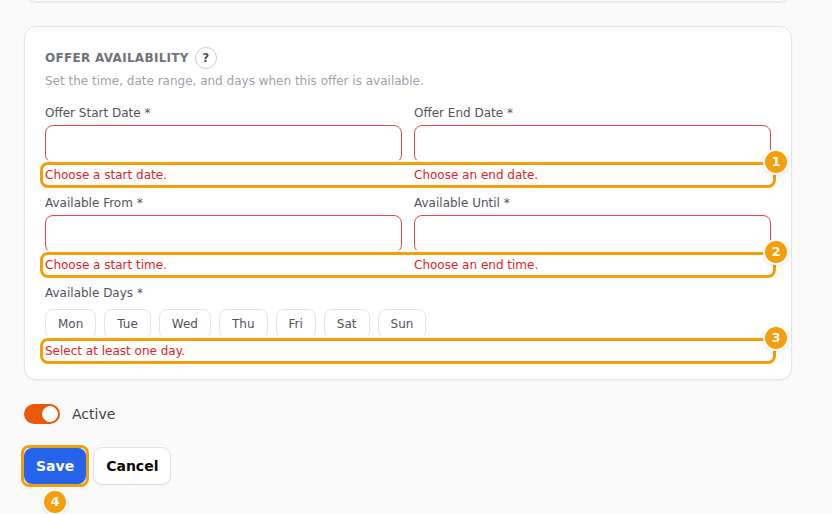
If something is missing, nothing is saved. A red message Please fix the highlighted fields. appears at the top right, and a red note stands under each field to fix. Each note disappears as soon as you fix its field.
| The note says | What to do |
|---|---|
| Choose one of your locations. | Pick a location under Location. |
| Enter a name. | Type a Name. |
| Choose a start date. / Choose an end date. | Pick a date. (Only for the copy of an ended offer; otherwise the dates may stay empty.) |
| The end date must be on or after the start date. | Move the end date to the start day or later. |
| Choose a start time. / Choose an end time. | Fill in both hours. |
| The end time must be after the start time. | Available Until has to be later than Available From. |
| Select at least one day. | Click at least one day. (Only on plans with weekdays.) |
Change an offer later
Click an offer in the list to open the same form. Save stays grey until you change something. Changes apply from that moment to everyone who books. In the top bar of an open offer you also find Duplicate, Archive and Delete — see Archive, restore and reuse offers.
Good to know
- The same offer at two locations? Make it once, click Duplicate, then choose the other location under Location in the copy and save. Prices follow the currency of that location. (This needs a free place on your plan — see Offers on your plan.)
- No limit on use. An offer has no maximum number of bookings. Any number of bookings can take it while it applies.
- Offers do not change the price of a booking. Table bookings are free of charge online — see What offers are for.
- Vouchers. A voucher whose option Stackable with offers is switched off is refused when the guest has chosen an offer. See Vouchers at a location.