Articles in this topic
What offers are for
An offer is a deal for certain days, times and group sizes — a lunch discount, a weekend brunch, a happy hour. Here is where you find your offers and how to read the list.
4 min read
An offer is a deal for guests who book a table: a percentage off, an amount off, or a special price. You decide on which days, at which times and for which group sizes it applies. Guests see the offers that fit when they book online, and your website can show them too. All your offers live in one list under Offers.
What an offer is
Every offer has the same few parts:
- A location. An offer belongs to exactly one location. A second location needs its own offer — see Duplicate an offer, which makes that quick.
- A name and a short description. Guests read both.
- The deal: a percentage off, an amount off, or a special price.
- When it applies: the hours of the day and, if you like, the group size. On the Pro and Ultimate plans also a first and a last date and the weekdays — see Offers on your plan.
Good to know
A table booking has no price online, so Clava never charges anything or takes anything off. When a guest picks an offer, it is written on the booking, and your team honours it at the table.
Open the list of offers
Offers are part of Configuration, the area for administrators. Editors and readers can't open it — see Team roles.
- Sign in. If you are not in Configuration, click the orange button at the top right and choose it.
- In the menu on the left, under Venue Content, click Offers.
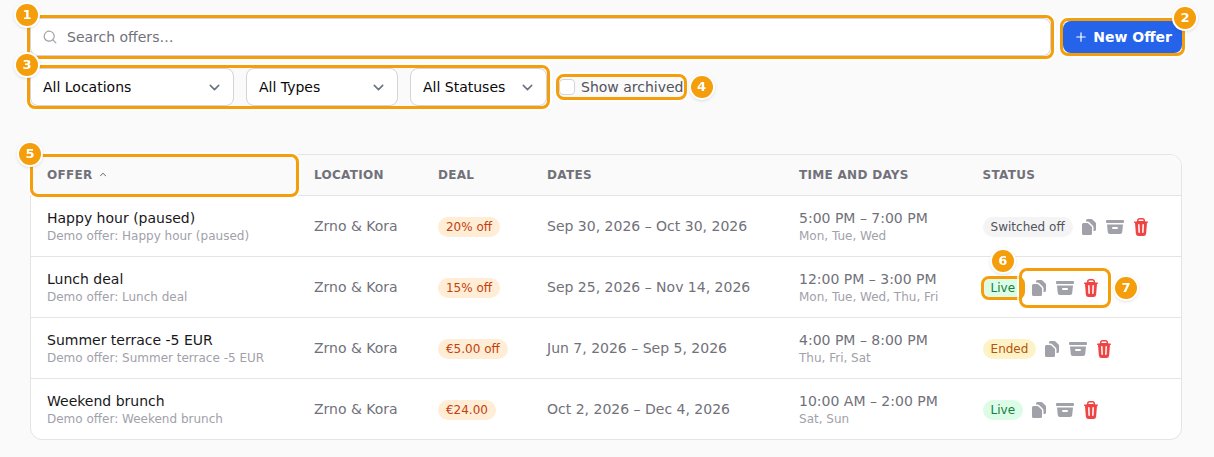
- (1) The search box finds offers by their name or their description.
- (2) New Offer opens the form for a new offer — see Create an offer. If your plan limits how many offers you can keep, a note such as 2 of 2 offers on your plan stands next to the button — see Offers on your plan.
- (3) The filters narrow the list down by location, kind of deal and status.
- (4) Show archived adds the offers you have put aside — see Archive, restore and reuse offers.
- (5) A click on a heading sorts the list; a second click reverses it.
- (6) The status says where the offer stands today.
- (7) The three buttons next to the status are Duplicate, Archive and Delete.
A click anywhere else on a row opens that offer for editing. Until you have made one, the list says No offers yet. Create one with “New Offer”.
What the columns show
| Column | What you see |
|---|---|
| Offer | The name, and the beginning of the description in small print. |
| Location | The location the offer belongs to. This column and the location filter only appear when your business has more than one location. |
| Deal | 15% off, €5.00 off, a price such as €24.00, or Special offer when you have not entered a price. Amounts are in the currency of the location. |
| Dates | The first and last day, for example Sep 25, 2026 – Nov 14, 2026. An offer with only one date reads From Sep 25, 2026 or Until Nov 14, 2026; one with no dates reads No dates. |
| Time and days | The hours (for example 12:00 PM – 3:00 PM) and, in small print, the weekdays — or Every day. An offer without hours reads All day. |
| Status | One of the five labels below. |
Dates and times are written the way your language writes them — for example Oct 5, 2026 in English, 5. lis. 2026. in Croatian and 5. Okt 2026 in German — and only English uses the 12-hour clock with AM/PM (7:30 PM); other languages show 19:30.
What the status labels mean
| Status | What it means |
|---|---|
| Live | The offer is switched on and today is between its first and last date. |
| Scheduled | The offer is switched on, but its first date is still ahead. |
| Ended | The offer is switched on, but its last date has passed. |
| Switched off | The Active switch of the offer is off. |
| Archived | You put the offer aside. It is switched off and hidden from guests — see Archive, restore and reuse offers. |
If several apply, the first of these wins: an archived offer always says Archived, a switched-off one Switched off.
Good to know
The status only looks at the Active switch and at the first and last date. A Live offer is not offered on a weekday or at an hour you have not chosen for it. See When Clava offers an offer to a guest.
Find an offer
- Search (1) as you type: the list narrows to offers whose name or description contains your words.
- Location, Type and Status (3): choose one in each box to narrow the list. Each box starts with its "all" choice: All Locations, All Types, All Statuses. Type is the kind of deal: Special offer, Percentage off or Amount off. Status is one of the labels above. The location box only appears with more than one location.
- Show archived (4): archived offers are left out of the list unless you tick this box. With Archived in the Status box you see only the archived ones.
- Clear Filters appears as soon as you use a search or a filter. One click empties them all. If nothing fits, the list says No offers match your filters.
- Sorting: click Offer, Deal or Dates (5). Deal sorts by the kind of deal, not by the size of the discount.
The list shows 15 offers at a time; page buttons appear under it when there are more. On a phone the list becomes one card per offer, and the filters hide behind a Filters button.
Offers on your plan
What you can do with offers depends on your Clava plan:
| Free | Pro | Ultimate | |
|---|---|---|---|
| Offers you can keep | 2 | 20 | No limit |
| Guests see your offers (booking page, booking widget and website) | No | Yes | Yes |
| Date ranges and weekdays | No | Yes | Yes |
How many offers. Archived offers do not count, so archiving an offer frees a place — and bringing one back from the archive needs a free place. When your plan has a limit, the list shows how much of it you use, for example 2 of 2 offers on your plan, next to New Offer. At the limit, New Offer, Duplicate and Restore from archive do nothing but show a warning: You have reached the limit for this feature on your current plan., followed by You have reached the limit of 2 on your current plan. Upgrade to increase your limit. Archive or delete an offer you no longer need, or choose a bigger plan.
Showing offers to guests. This needs the Pro or Ultimate plan — or the free trial. Without it, the booking page and the booking widget skip the offer step, no offer is ever attached to a guest's booking, and the Offers section of your website stays empty. You can still create and keep offers; guests just do not see them. More in Where guests see your offers.
Date ranges and weekdays. These need Pro or Ultimate too. On the Free plan the form shows a locked note instead of the date and weekday boxes: On your plan an offer runs every day, without a date range. Date ranges and weekdays are available on Pro and Ultimate plans. A new offer then runs every day, and only its hours apply. An offer that already has dates and weekdays keeps them. See Create an offer.