Articles in this topic
Archive, restore and reuse offers
Put an offer aside without losing it — archive it, bring it back from the archive, or copy it into a new offer with new dates. Also how to pause an offer and how to delete one for good.
5 min read
Offers pile up: the Christmas menu, the summer terrace deal, the happy hour you ran in spring. Instead of deleting the ones you may want again, archive them. An archived offer is kept, but it is switched off and hidden from your guests. When the season comes round again you bring it back, or copy it into a new offer with new dates.
Archive or delete?
| Archive | Delete | |
|---|---|---|
| The offer is kept | Yes | No — it is gone for good |
| Guests see it | No | No |
| You can use it again | Yes: restore it or duplicate it, at any time | No. Clava has no way to bring a deleted offer back |
When in doubt, archive. Delete only an offer you made by mistake.
Neither counts towards the number of offers your plan allows, so both free a place — see Offers on your plan.
Archive an offer
You can archive an offer from the list or from the offer itself.
From the list
- In the menu on the left, under Venue Content, click Offers.
- In the row of the offer, click the Archive button — the small box, the middle one of the three buttons next to the status. Point at it for a moment and its name appears.
From the open offer
- Click the offer's row to open it.
- In the top bar, click Archive (2) — next to Duplicate (1) and Delete (3).

Both ways ask the same question. A window says Archive this offer? and explains what happens. Click Archive (2) to confirm. Cancel (1) closes the window and changes nothing.
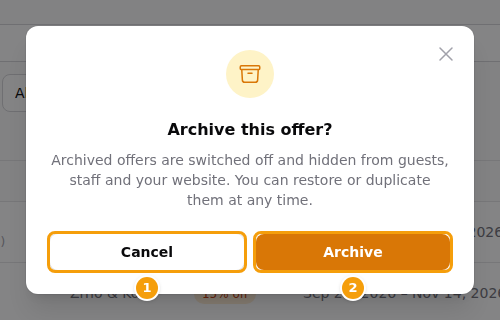
A green message Offer archived. appears and the offer leaves the list — if you archived from the open offer, you are back in the list. From now on it is switched off and hidden from guests (the booking page, the booking widget and your website) and from your team's Special Offer choice when they make a booking. Bookings that already took the offer stay as they are.
While the offer has unsaved changes, Archive is greyed out (2): archiving closes the form, so save your changes with Save (1) or discard them first — Save or discard your changes before archiving. An offer that is already archived has no Archive button; it has Restore from archive instead.

See your archived offers
The list hides archived offers. To see them, tick Show archived (1) above the list. They appear between the others with the label Archived (2). Choose Archived in the Status box to see only them.
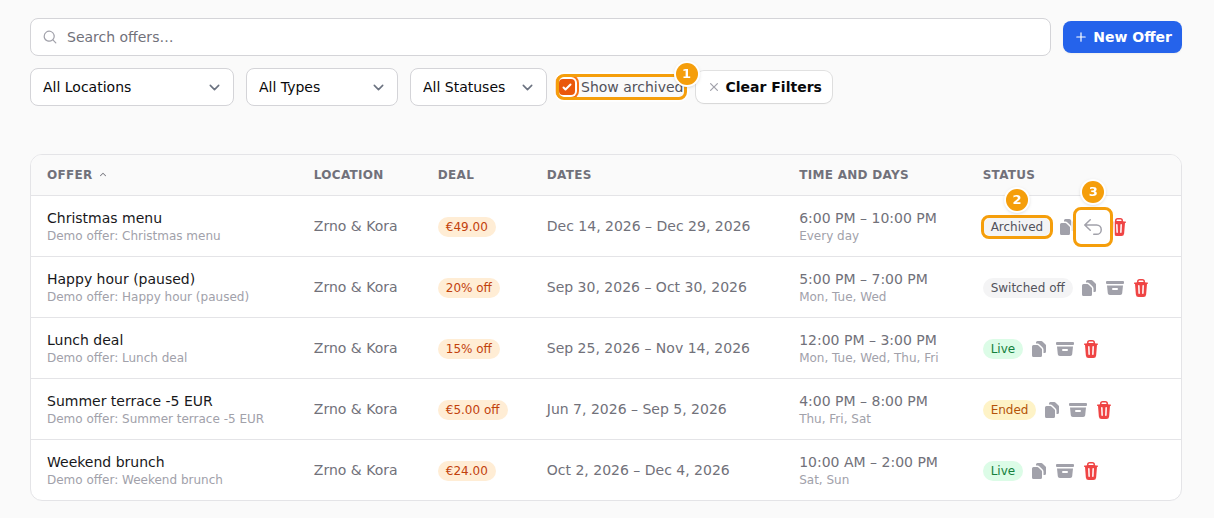
An archived offer has the buttons Duplicate, Restore from archive (3) and Delete. Click the row to open it: a yellow note says This offer is archived: guests, staff and your website do not see it. Restore it to use it again, or duplicate it into a new offer. The Active switch is greyed out. If you save changes to an archived offer, it stays archived.
Bring an offer back
- Show the archived offers (see above).
- Click Restore from archive (3) in the row — or open the offer and click Restore from archive in the yellow note. A message says Offer restored. It stays switched off until you turn it on.
- Open the offer. Look at its dates: an old offer has usually Ended. Choose new dates if you need to.
- Switch Active on and click Save.
Archived offers do not count towards your plan's limit, but a restored one does again. If your plan has no free place left, Restore from archive shows a warning — You have reached the limit for this feature on your current plan. — and the offer stays in the archive. Archive or delete another offer first, or choose a bigger plan; see Offers on your plan.
Important
A restored offer is not live yet. It says Switched off until you switch Active on and save. Restoring is deliberate: you check the dates first, and nobody is offered a Christmas menu in July by accident.
Copy an offer into a new one
Duplicate is the quickest way to run an offer again: it makes a new offer with the same deal, hours, days and group size, and leaves the original alone. It works on every offer — current, ended or archived.
- Click the Duplicate button in the offer's row (the first of the three) — or open the offer and click Duplicate in the top bar.
- A new form opens, filled in from the original. The name ends with (copy) (1) and Active is on.
- If the original has ended, its dates are cleared (2) and a note says The original offer has ended, so its dates were cleared. Choose new dates. (3) An offer that has not ended keeps its dates. (On the Free plan the dates are hidden in the form, so the copy simply runs every day and no note appears.)
- Change what you want — the name, the dates, the deal, even the location — and click Save.
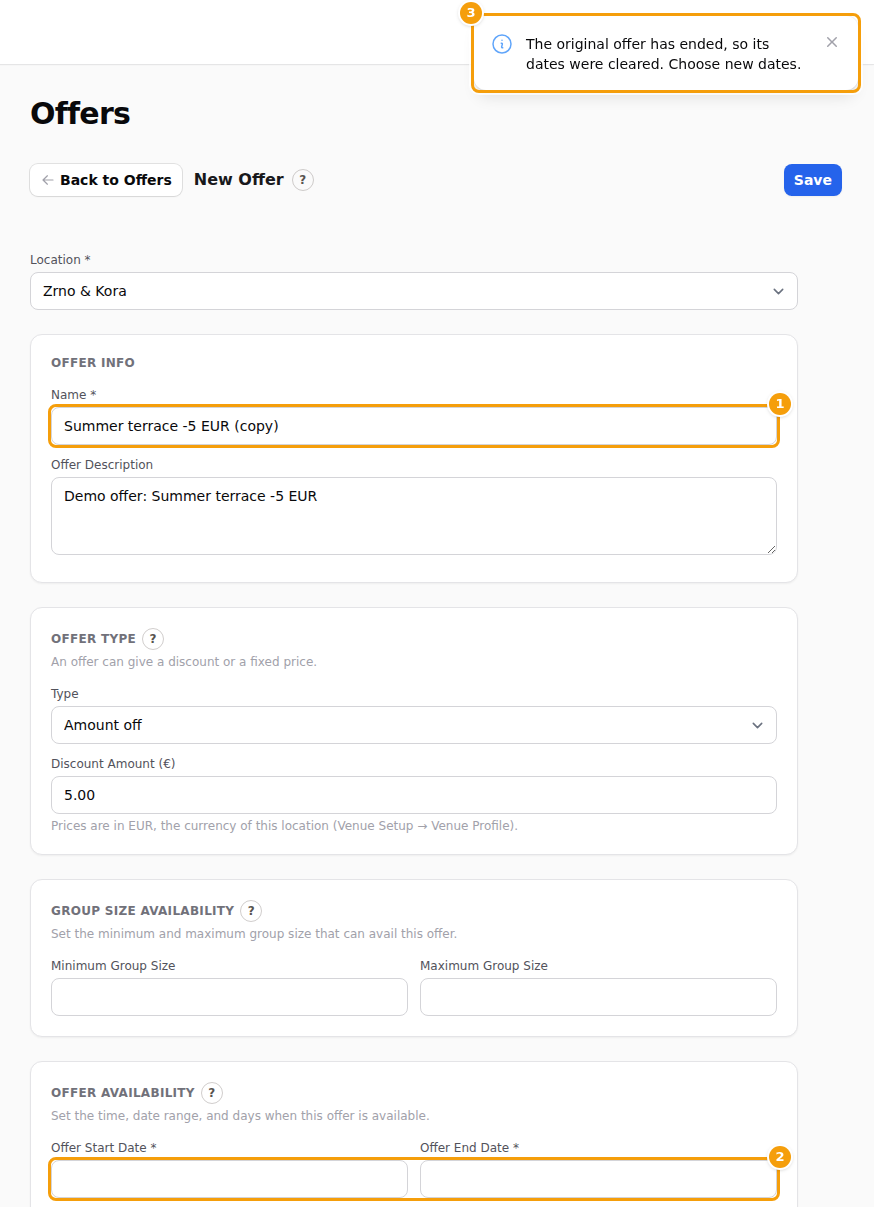
Nothing exists until you click Save. If you leave the form without saving, Clava asks what to do, and Discard & Continue throws the copy away.
Careful
The copy starts switched on. Once saved, it is live as soon as today falls between its dates. Check the dates and the Active switch before you save.
A copy is a new offer, so it needs a free place on your plan. At the limit, Duplicate shows the warning You have reached the limit for this feature on your current plan. and opens nothing — see Offers on your plan.
Pause an offer without archiving it
If you only need a short break, switch the offer's Active switch off and save. The list says Switched off, and guests no longer see it — neither while they book nor in the Offers section of your website. Switch it back on when you are ready. The offer stays in the normal list, so you see it every day — and it still counts towards your plan's limit. Archive it instead when it is over for a long time.
Delete an offer
Click the red Delete button in the row, or Delete in the top bar of an open offer. A window asks Delete this offer?; click Delete to confirm or Cancel to keep it.
Careful
A deleted offer cannot be restored or reused from Clava. If you may need it later, archive it instead.