Articles in this topic
What vouchers are for
The three kinds of voucher — a promo code for many, a code for one guest, a gift card with a balance — where guests and staff use them, what your plan includes, and how to read the list in Marketing → Vouchers.
6 min read
A voucher is a code your guest can use when booking a table, or show at the table. You make all of them in one list, under Marketing → Vouchers. This article explains the kinds of voucher, where they are used and how to read the list. How to make one is in Make a voucher.
The three kinds
When you make a voucher you choose its Type:
| Type | What it is | Typical use |
|---|---|---|
| Promo Code | One shared code that many guests can use, as often as you allow. | VIKEND10 on a flyer or in a newsletter: 10% off weekend brunch. |
| Single Use | A code that can be used once. It can be for anyone who has the code, or only for one guest (their email). | An apology for a long wait, a birthday present, a batch of printed codes. |
| Gift Voucher | A gift card with a balance that is spent in parts, until it is empty. | A €30 card someone gives as a present. Needs the Ultimate plan. |
What a promo or single-use voucher gives is one of three things: a percentage off, a fixed amount off or a free extra (for example a coffee of your choice). A gift card gives its balance.
There is a fourth thing in the list, which is not a voucher: a template. A template has no code of its own. It is a blueprint from which Clava makes a voucher for one guest — by hand, by an automatic rule or by your staff at the table. See Templates.
No money moves online
A table booking in Clava has no price and no deposit. So a voucher a guest types when booking is a claim: it is saved on the booking and nothing is charged or deducted. Your team honours the voucher at the table, when the guest pays — see Vouchers at the table. A minimum spend you set is shown to the guest as a condition only; your staff check it at the table.
Where vouchers show up
- The booking form. When your location accepts voucher codes, the last step has a Voucher Code box. See Vouchers at a location.
- The voucher email. A guest who is given a voucher gets an email with the code. See Give vouchers to guests.
- The voucher page and the printed card. Every voucher has a page with a QR code, and a card you can print. See Print or PDF.
- The guest wallet. All the vouchers a guest has from your business, in one place. See The guest wallet.
- At the table. Your staff check a code and honour it on the Booking Dashboard. See Vouchers at the table.
Your plan
Vouchers are part of the Pro and Ultimate plans and of the free trial. On the Free plan the page opens with an upgrade note and you cannot make vouchers.
| Pro | Ultimate | |
|---|---|---|
| Promo and single-use vouchers | Yes | Yes |
| Active vouchers at once | 20 | No limit |
| Uses per voucher | Up to 500 | No limit |
| One voucher for several locations | No — each voucher is for one location | Yes |
| Gift cards | — | Yes |
| Batches of codes and personal vouchers for a list of guests | — | Yes |
| Own colours on the printed voucher | — | Yes |
| Statistics per month and per location | — | Yes |
Suspended, expired and deleted vouchers don't count towards the 20 on Pro. See Plans and billing.
Open the page
- Click Configuration (the orange button at the top) if you are in another area.
- In the menu on the left, under Marketing, click Vouchers. The page is called Voucher Management.
Only administrators open this page. Editors and readers can see a voucher on a booking and editors can check and honour it at the table, but they don't manage vouchers here. See Team roles.
The list
On the left is the list; on the right is the detail of the voucher you click.
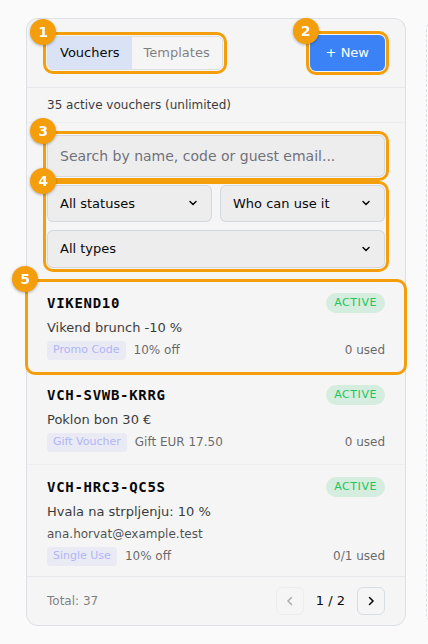
- Vouchers | Templates (1) switches between your vouchers and your templates.
- + New (2) starts a new voucher (or + New template on the Templates tab).
- The line under the buttons says how many active vouchers you have — 25 active vouchers (unlimited), or on Pro 12 of 20 active vouchers.
- The search box (3) finds a voucher by name, code or guest email. A code is found however it is typed: capital letters, spaces and dashes don't matter.
- The filters (4): All statuses (Active, Suspended, Expired, Exhausted), Who can use it (Anyone with the code or One guest only) and All types (Promo Code, Single Use, Gift Voucher).
- Each row (5) shows the code, the name, the guest's email if the voucher is personal, a chip with the type, the discount and how often it was used (0/1 used), and a status badge.
- At the bottom you see the total and the page buttons. The newest voucher is first.
The statuses mean: Active can be used; Suspended is paused by you; Expired has passed its last valid day; Exhausted has been used as often as allowed (or a gift card has no balance left).
The detail
Click a voucher to see it on the right.
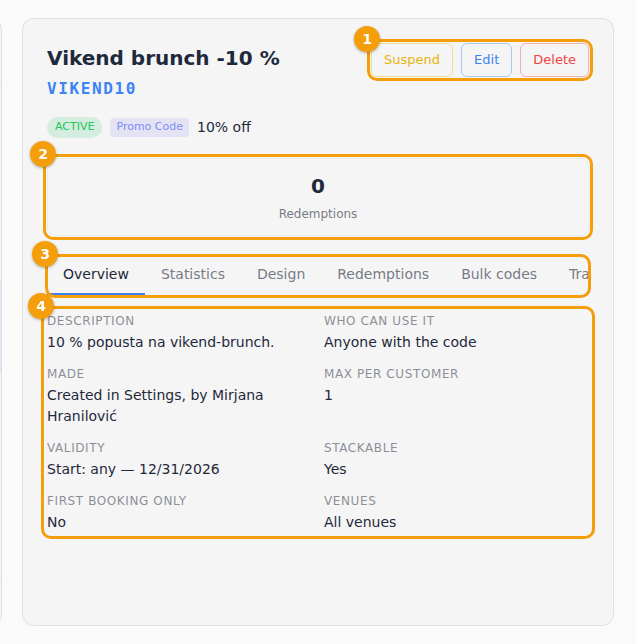
- (1) Suspend pauses the voucher, Edit opens the form, Delete removes it after a question.
- (2) How often the voucher was used. A gift card also shows its remaining balance.
- (3) The tabs: Overview, Statistics, Design (preview, PDF and QR code), Redemptions (every use: booking claims, uses at the venue and gift card spending), Bulk codes (promo and single-use vouchers) or Gift card (gift cards), and Translations.
- (4) The Overview lists the description, who can use it, how it was made, the limits, the validity, the days and hours, whether it can be combined with offers and the locations.
Related
- Make a voucher
- Give vouchers to guests
- Vouchers at the table
- The guest wallet
- Vouchers at a location — voucher codes on the booking form and automatic vouchers