Articles in this topic
Import and export menus (CSV)
Create or update menus, courses and dishes with prices, translations and allergens from a spreadsheet, check the result before anything is saved, and export your menus to edit them in Excel.
7 min read
A long menu is quicker to fill in in a spreadsheet. Import CSV in the menu builder reads a CSV file, shows you exactly what it would create and change, and saves it only when you say so. Export CSV gives you your menus in the same file shape, so you can change them in Excel and upload them again.
The short way
-
Open Menus and click Import CSV.
-
Download the template in your language (or Export all menus), fill it in and save it as CSV.
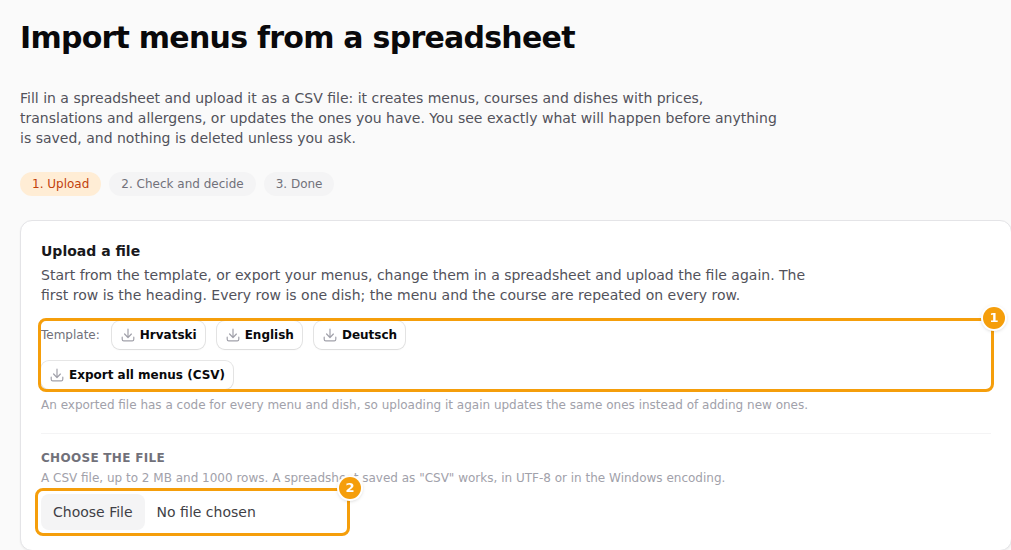
The upload step: the templates and the export (1), and the file chooser (2) -
Choose the file. You see what would happen: new and changed menus, courses and dishes, price changes (old, then new), warnings and errors with their line and column.
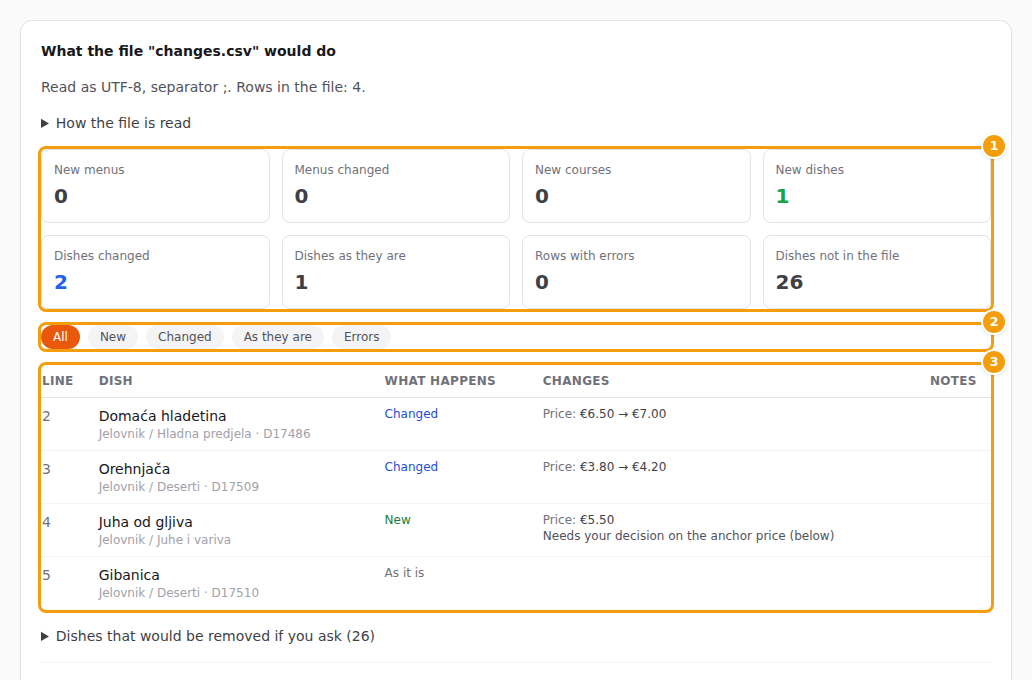
The check: the summary (1), the filters (2) and what happens to each dish (3) -
Make the decisions at the bottom of the page, then click Import and confirm.
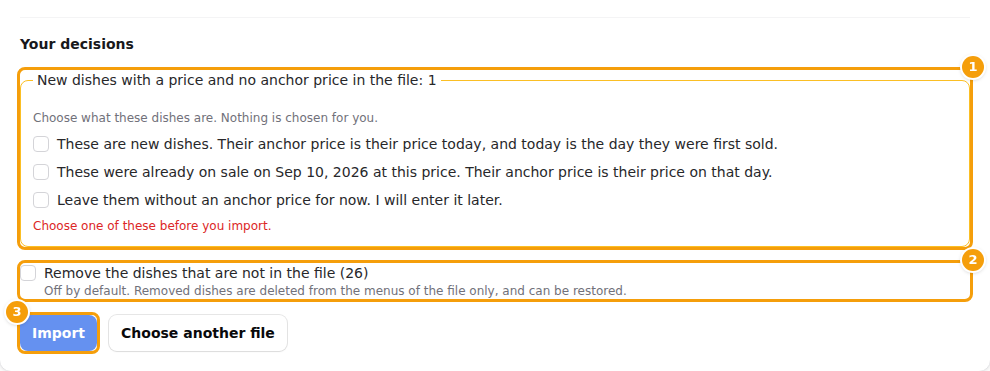
Your decisions (1), removing dishes that are not in the file (2) and the Import button (3)
Nothing is saved before the last click, and everything is saved at once or not at all. You can import the same file again safely: what is already as in the file is left alone.
The file
The first row is the heading, and every other row is one dish. The menu and the course are repeated on every row.
Headings can be in English, Croatian or German (name, naziv or bezeichnung), in any order.
| Column | What it is |
|---|---|
menu |
the name of the menu (required) |
menu_code, menu_type, menu_price |
the menu's code, a_la_carte or set_menu, and the price per person of a set menu |
course |
the course, for example Starters; empty means no course |
code |
your code for the dish, so the file finds the same dish next time |
name (required), description |
the dish in the main language of the menu |
price, unit |
the regular price, and what it is for: kg, 100g, glass, bottle, portion, person ... |
anchor_price, anchor_date |
for Croatian locations: the price on 10 September 2026, or the price at which a new dish first went on sale and the day |
special_price, special_from, special_until, special_label |
a special with its days and name |
allergens, dietary |
separated by ` |
name_en, description_de, menu_hr, course_en ... |
the same texts in the other languages of the menu |
Amounts can be written 12,50, 12.50, 1.250,00 or 1,250.00; a € is dropped. Days can be 2026-09-10,
10.9.2026. or 10.09.2026, never 10/9/2026 because that can be read two ways. An empty cell leaves the value as it is;
a single - clears an optional cell. A file can have up to 1000 rows and 2 MB.
Saved from Excel as CSV (semicolon) or CSV UTF-8, the file is read correctly. A file in the Windows encoding (Croatian letters like č, ć, đ, š, ž) is recognised too; if the sample on the preview shows odd letters, choose the encoding there.
How rows find their dishes
A menu is found by its menu_code, else by its name. A dish is found by its code inside the menu, else by its course and
name. If it is not found, it is created. A dish found by its code but with another name is renamed, and its anchor price
stays with it. Only the cells you fill in are changed. A dish that is in the menu but not in the file is not touched
unless you choose to remove it.
Good to know
Menus made for one client's event and menus you have locked are not changed by an import. Your plan's limit for menus applies to new menus.
Anchor prices
For a Croatian location, a new dish with a price and no anchor price in the file needs your answer before you can import. Nothing is chosen for you:
- These are new dishes - the anchor price is today's price and the day they were first sold.
- These were already on sale on 10 September at this price - you confirm it, and the anchor price is that day's price.
- Leave them without an anchor price - they get the Anchor to be entered badge and you fix them later.
An anchor price written in the file is saved only after you tick the confirmation that it was the regular price on the day given. An anchor price that is already saved and differs from the file is kept; tick Replace the anchor prices that differ and the confirmation to overwrite it. See Anchor prices.
To fill in the prices of 10 September for many dishes at once, download Dishes to fill in with their price on 10. 9.
2026., write the prices in the anchor_price column and upload the file.
Errors and warnings
An error stops the import: the whole file is refused until you fix it, or you tick Import only the rows without errors. Warnings, such as an allergen word that is not known or a price written in a description, do not stop it. Download the rows with errors gives you a file with just those rows and what is wrong with each, to fix and upload again.
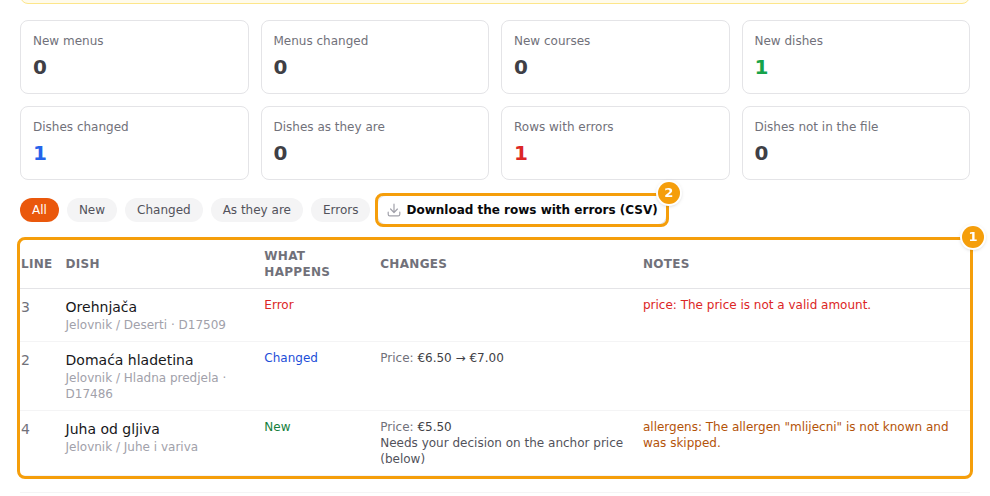
Remove dishes that are not in the file
Off by default. When you tick it, the dishes of the menus in the file that the file does not list are removed from those menus (they can be restored). Menus that are not in the file are never touched.