Articles in this topic
What a booking calendar does
A booking calendar holds the rules for online table bookings at your location — when you are open, how many guests fit, which days are closed. Here is how to find it, create one, link it to a location and see what your guests get.
8 min read
A booking calendar is the set of rules behind your online bookings: when you are open, how many guests one booking may have, which days are closed, and who gets a copy of the emails. Your guests never see the calendar itself — they see the free times it produces. Without a calendar linked to your location, nobody can book a table online.
What you need for online bookings
Three things work together. If one is missing, guests see no times.
| What | Where you set it | Learn more |
|---|---|---|
| The rules and opening hours — the booking calendar | Booking Calendars, the pages you are reading about | Working hours |
| Where guests sit — floors and tables | Venue Setup, tab Floors & Tables | Floors and tables |
| The link between your location and the calendar | Venue Setup, tab Booking & Patrons | See below |
Every location uses exactly one calendar. Your team's booking screens use the same calendar as your guests, so the opening hours you set here are also the hours on your team's boards.
Open the list of calendars
Booking calendars are part of Configuration, the area for administrators. Editors and readers can't open it — see Team roles.
- Sign in. If you are not in Configuration, click the orange button at the top right and choose it.
- In the menu on the left, under Venue Setup, click Booking Calendars.
The page always opens with nothing selected, even if you only have one calendar.
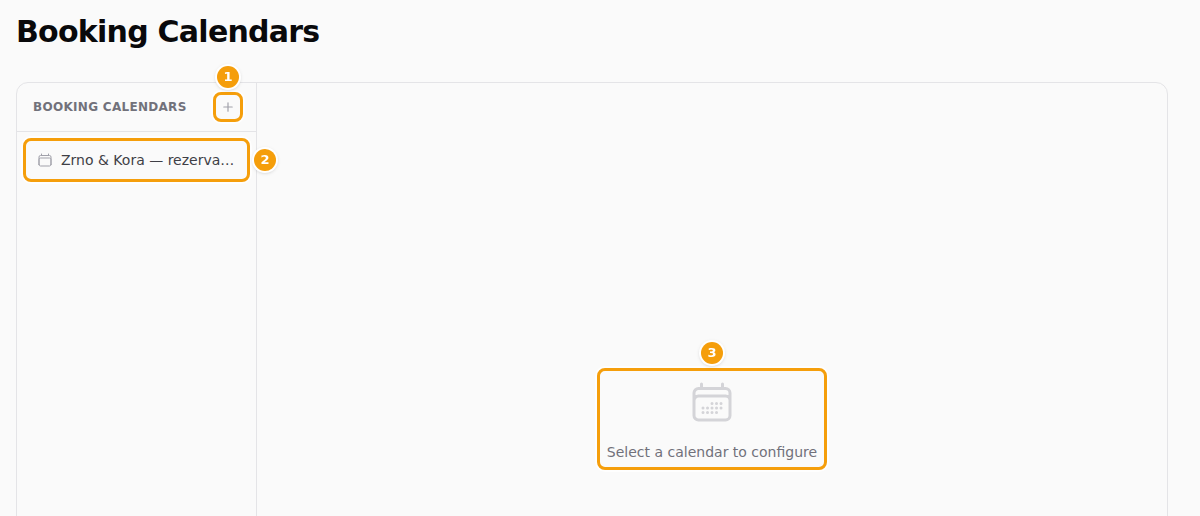
- (1) The + button makes a new calendar — see Create a new calendar.
- (2) Your calendars, from A to Z. Long names are cut short. Click one to open it.
- (3) Select a calendar to configure stays here until you open one.
There is no button to delete or copy a calendar. To rename one, change its name on the General tab.
Good to know
A business that signed up through Clava's own set-up already has one calendar, named after the business. Most businesses with a single location never need a second one.
Create a new calendar
A location you add with New Venue in Venue Setup already has its own booking calendar, linked to it: it starts with the strategy, time zone and opening hours of your brand's first location. So you do not need to make one for it. Make an extra calendar only when a location needs another set of opening hours or rules.
- Click the + button above the list (1 in the picture above). A small window opens.
- Type a Name (1). It is only for you and your team — guests never see it.
- Check the Booking Strategy (2). Read the table below before you change it.
- Click Create Booking Calendar (3). Changed your mind? Click Cancel (4) — nothing is created.
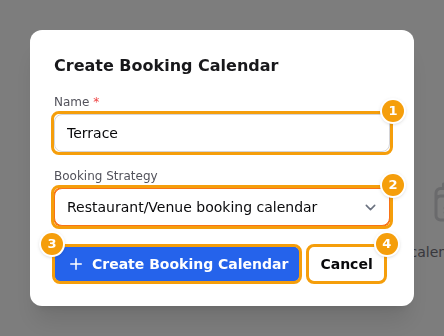
A green message, Saved., appears and the new calendar opens on its General tab. If the Name is empty, a red message appears under it and nothing is created.
Important
A new calendar has no opening hours and no link to a location. It is "closed" every day until you add working hours and connect it to your location.
Which booking strategy?
The strategy decides how Clava finds a place for a guest. The window is pre-set to the first choice.
| Choice | How it works | What Clava needs from you |
|---|---|---|
| Restaurant/Venue booking calendar | You seat guests at particular tables. The guest gets a table: Clava picks the smallest free table with enough seats. | Your tables with their seats, in Floors & Tables. |
| Capacity booking | You count seats per room or area and don't give out table numbers — a café, a bar, a terrace. The guest gets a place on a floor that still has enough free seats. | Floors with a Seated Capacity and Bookable Online ticked, in Floors & Tables. |
| Resource-based booking | Never choose it for a restaurant or café. It is meant for older set-ups that rent out rooms or courts, and your booking page cannot work with it. | — |
The two real choices also end the day differently. With Restaurant/Venue booking calendar, the last time guests can pick is 90 minutes before the end of an opening period, because the whole stay must fit before you close. With Capacity booking, it is 15 minutes before the end. See Working hours.
You can change the strategy later on the General tab, but it changes how your booking page works at once.
Find your way around an open calendar
Click a calendar (1). It opens on the General tab. Across the top are five tabs (2).
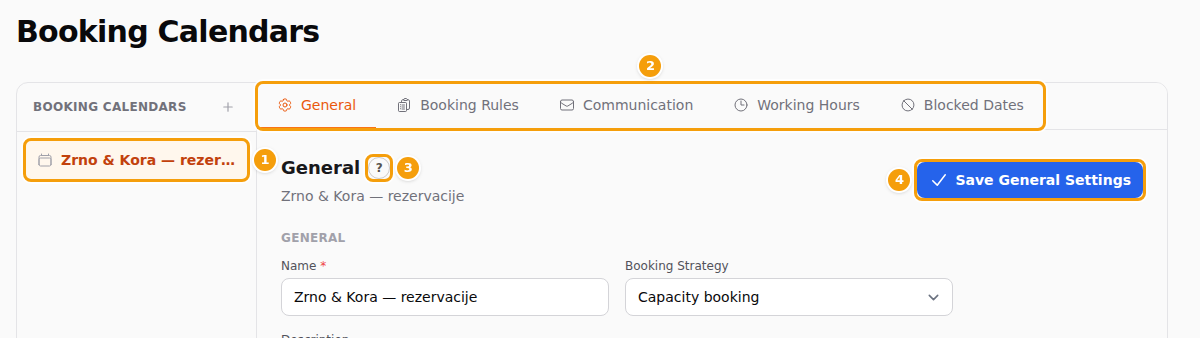
| Tab | What you decide there | Learn more |
|---|---|---|
| General | The calendar's name, its booking strategy, and which location uses it. | General settings |
| Booking Rules | How many guests one booking may have, how far ahead guests must book, the optional questions, and messages for bigger groups. | Booking rules |
| Communication | The copy of booking emails that goes to you. | Emails and messages |
| Working Hours | When you are open on each weekday. | Working hours |
| Blocked Dates | Holidays, private events and other times you take no online bookings. | Closed days and blocked times |
The round ? (3) next to the heading of each tab, just below the tab bar, opens the help for that tab.
How saving works
Saving works differently on the tabs, so read this once.
- General, Booking Rules and Communication share one set of fields. Each of them has its own save button (4), but every one of them saves all three tabs. You can change something on Booking Rules, open Communication, change something there, and save once. Your changes stay on the screen while you move between these three tabs.
- Working Hours has its own button, Save Working Hours. Editing a period in the small window only changes the picture until you click it.
- Blocked Dates saves at once: the Save button in the small window is the save.
- A mistake stops the save. A red message Not saved appears at the top right, and a red note under the wrong field says what to fix. Nothing is saved — not even the fields that are fine. Clava opens the tab that has the mistake.
- Unsaved changes are thrown away without a warning when you open another calendar, reload the page or leave it. Save first.
Connect the calendar to your location
The link is made in Venue Setup, not in the calendar.
- In Venue Setup, click Configure on your location, then click the tab Booking & Patrons (1).
- Open the list Associated Booking Calendar (2) and choose your calendar.
- Click Save Booking Settings (3). A green message, Changes saved successfully., confirms it.
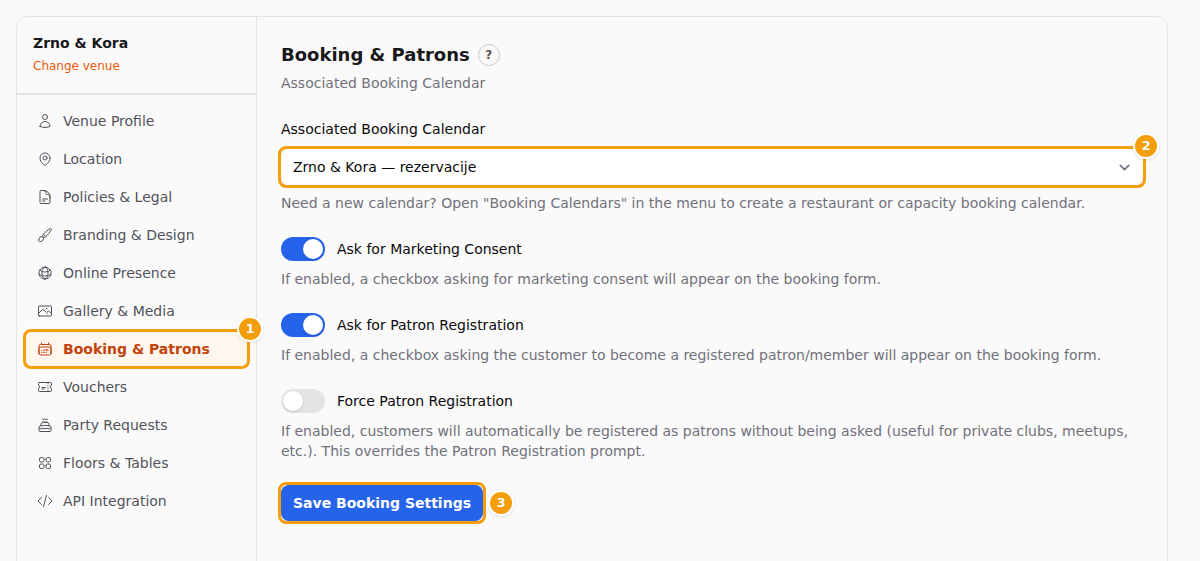
The change is live straight away; there is nothing to publish. The list only offers calendars whose strategy is Restaurant/Venue booking calendar or Capacity booking. Back on the calendar's General tab, the box Associated Venue now shows the name of your location — see General settings.
Careful
Choose a calendar that no other location uses. Clava does not stop you from picking one that is already in use, but then both locations share its opening hours and seats.
More about this tab: Bookings and guests.
How your guests book
Guests book on your standard booking page or on a Booking page of your website (see The booking page). Both use your calendar. To find the link and share it, see Share your website and booking link.
- The guest picks a date. Days you have blocked for the whole day are greyed out and can't be picked.
- The guest taps the number of guests (1 in the picture).
- The guest taps Check Availability and sees the free start times (2).
- The guest picks a time, types their name and contact details, and confirms. If one of your special offers fits that time, they are first asked whether they want it.
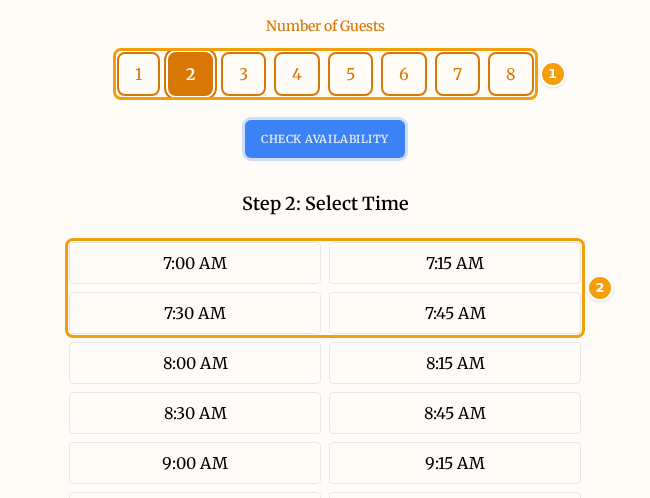
Good to know about every online booking:
- It lasts 90 minutes. You can't change this in the calendar. Your team can lengthen or shorten a single booking afterwards.
- Start times are 15 minutes apart — 12:00, 12:15, 12:30 and so on.
- At most 50 guests can book online, whatever you enter in Maximum Guests. For bigger groups guests can send a request, if you have switched on party requests — see Event and celebration requests.
- It is confirmed at once. There is no step where you approve a booking. The guest gets a confirmation email with a Manage my reservation link, where they can look at the booking and cancel it.
The times a guest sees are only the ones that pass every rule of your calendar:
- you are open (your working hours);
- the day or the hours are not blocked;
- the time is not too soon (Minimum Hours Ahead, and Disable Same-Day Bookings, in Booking rules);
- a table or enough seats are still free at that time.
Good to know
On the Free plan, a day is full after 10 bookings at a location. This counts bookings your team entered too. Pro and Ultimate have no daily limit.
If guests see "no available slots"
When a guest picks a day without times, the booking page shows Sorry, there are no available slots for the selected date and party size. It says the same thing for very different reasons. Check these, in order:
- The calendar is linked to the location — see above.
- Online Booking is switched on in Booking rules.
- You are open that weekday — there is a period for it in Working hours.
- The day is not blocked in Blocked dates.
- Not too soon: for today and tomorrow, check Minimum Hours Ahead and Disable Same-Day Bookings.
- The party fits: floors and tables exist and are big enough — see If guests see no available times.
- On the Free plan, the day may already have 10 bookings.
- An event closes online booking. An event at your location can have Close online table booking during the event switched on. While it runs, guests see no times.
Tip
Test your page the way a guest sees it: open the booking page in a private browser window and try tomorrow, a day you are closed, and a big group.