Articles in this topic
Working hours
Tell Clava on which days and between which times guests can book a table, and see how these hours show on your website.
7 min read
The Working Hours tab is your weekly timetable. Guests can only book at times that fall inside the periods you enter here. A weekday without a period is a closed day: guests find no free times for it. The same hours also fill the Opening Hours section of your website.
The weekly grid
In the menu on the left, click Booking Calendars, click your calendar and open the Working Hours tab. You see one column for every day of the week, with the hours down the left side. The grid opens at 00:00, so scroll down to reach the morning and the evening.
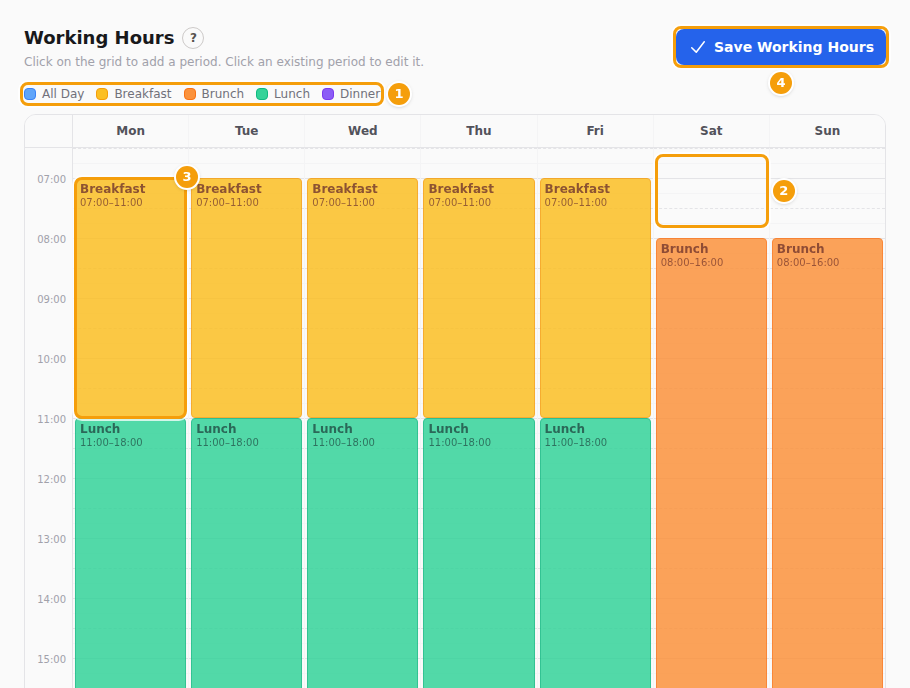
- The colours (1) tell the kind of period: All Day, Breakfast, Brunch, Lunch or Dinner.
- Click an empty spot (2) to add a period.
- Click a coloured block (3) to change or delete that period.
- Save Working Hours (4) writes your changes. Until you click it, nothing is saved.
The week starts on Monday. If you tick Sunday First on the Booking Rules tab and save, it starts on Sunday instead.
Add a period
A period is one stretch of time on one day, for example Monday 11:00 to 18:00. Every day you are open needs at least one.
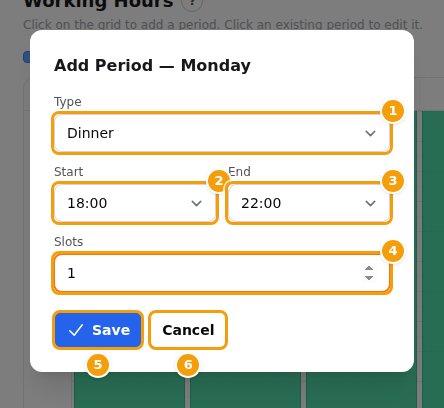
- Scroll the grid to the time you need and click an empty spot in the column of the day. The window Add Period opens, with the day in its title. It suggests a start at the time you clicked and a length of one hour.
- Choose the Type (1): All Day, Breakfast, Brunch, Lunch or Dinner.
- Set Start (2) and End (3). The times go in steps of 15 minutes. The last choice for End is 24:00, which means midnight.
- Leave Slots (4) at 1. It is not used for online bookings, and a different number is not kept.
- Click Save (5) in the window. The block appears in the grid.
- Repeat for every other day and period. There is no copy button, so each day is entered on its own.
- Click Save Working Hours. The green message Working hours saved. appears.
Important
Save (5) in the window only puts the block into the grid. Your week is stored only when you click Save Working Hours. If you leave the page first, the new periods are gone.
Cancel (6) closes the window without adding anything.
The Type is a name and a colour. It does not change when guests can book. Some of your team's booking screens and reports use it as the heading of a period (for example Lunch), which helps to find your way around the day.
Change or delete a period
- Click the coloured block. The window Edit Period opens.
- Change the Type, Start or End, and click Save in the window. Or click Delete (2) to remove the period.
- Click Save Working Hours.
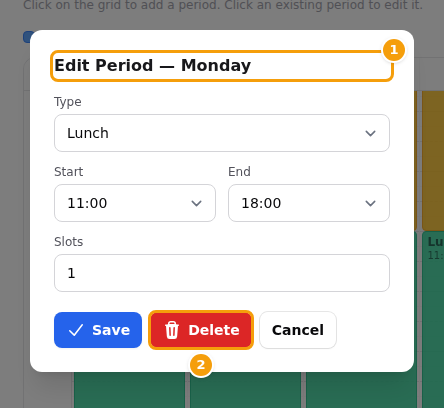
Delete takes the block out of the grid at once and does not ask. It is still in your saved hours until you click Save Working Hours. If you delete a period by mistake, reload the page without saving and your saved hours come back.
Tip
If you move or remove a period on a day that already has bookings, look at that day on your team's booking screens afterwards.
When Clava refuses your hours
Clava checks the hours before it saves them. If something is wrong, you get a message and nothing is saved, so your old hours stay as they were.
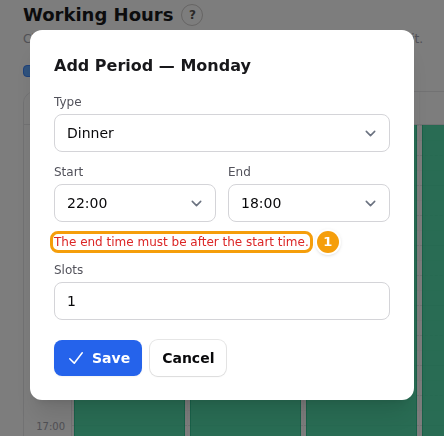
End before Start. In the window, the end must come after the start. If it does not, the window stays open and a red text appears under the times: The end time must be after the start time.
The same period twice. Two periods on the same day with exactly the same start and end are not allowed, even if their types are different. When you click Save Working Hours, a red message appears at the top and above the grid, for example Monday: the period 11:00–18:00 is entered more than once. Remove the duplicate. Nothing was saved. Click the block, choose Delete, and save again.
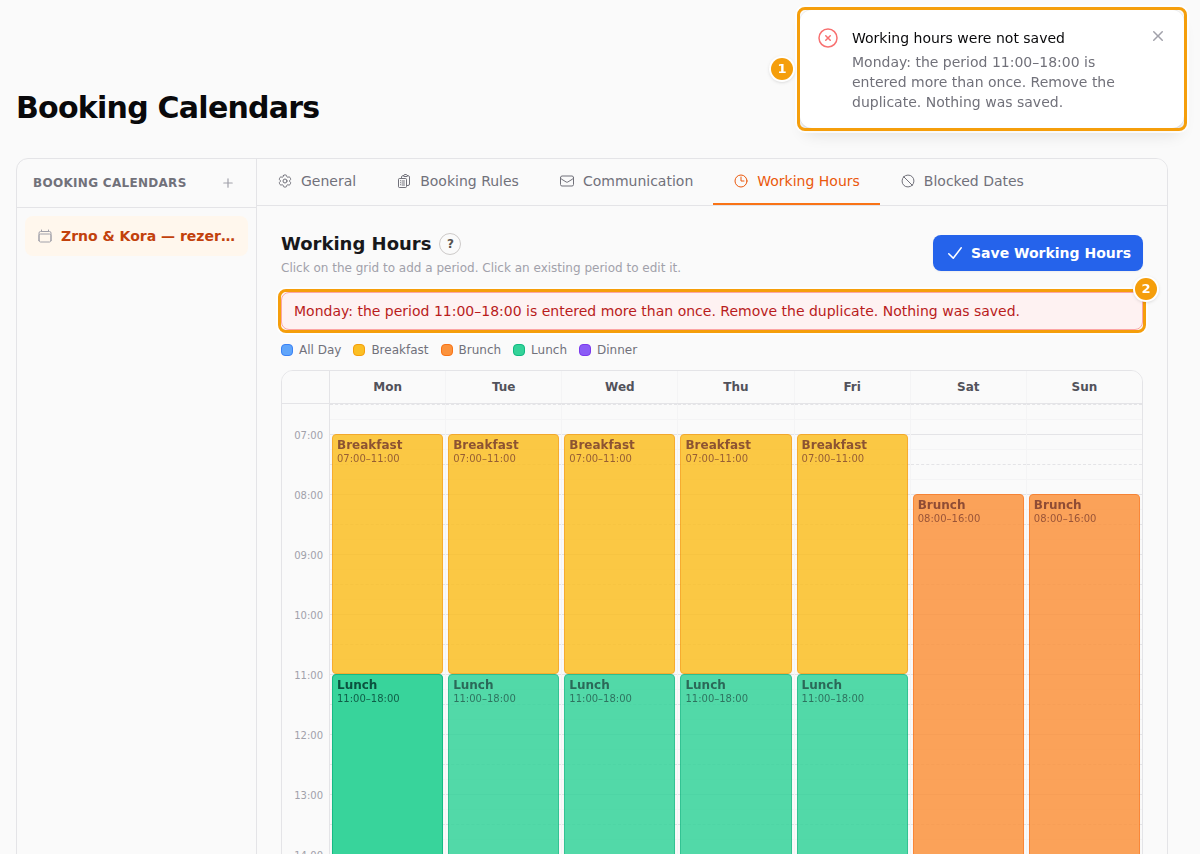
Periods that overlap without being the same are accepted, but they add nothing: guests see each start time only once.
What guests can book
Guests choose a start time. The system offers start times every 15 minutes inside each period. Where the list stops depends on the type of your calendar. You see it on the General tab under Booking Strategy.
| Booking Strategy | Last start time | If the period ends at 22:00 |
|---|---|---|
| Capacity booking | 15 minutes before the end | 21:45 |
| Restaurant/Venue booking calendar | 90 minutes before the end | 20:30 |
With Restaurant/Venue booking calendar, a table is held for 90 minutes and the guest must be finished by closing time. That is why the last start is 90 minutes before End.
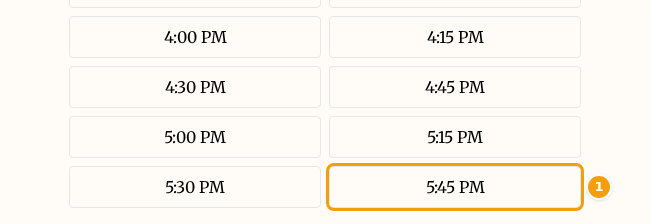
The picture shows a capacity calendar where Lunch ends at 18:00. The last start time is 5:45 PM, and the list starts at 7:00 AM with the breakfast period.
- With Restaurant/Venue booking calendar, set End to your closing time. The last booking is then 90 minutes earlier.
- With Capacity booking, set End to your last booking time plus 15 minutes.
- Nothing between two periods. With Lunch 12:00–15:00 and Dinner 18:00–22:00, guests cannot book from 15:00 to 18:00.
- Periods that follow each other. With Restaurant/Venue booking calendar, each period is looked at on its own, so a table must be free until the end of its own period. With Breakfast 07:00–11:00 followed by Lunch 11:00–18:00, guests get no start time from 09:45 to 10:45. If you do not need separate meal times, enter one period for the whole day.
- A day without a period is closed. The booking form says Sorry, there are no available slots for the selected date and party size.
Other rules can shorten the list further, for example the ones on the Booking Rules tab and your blocked dates.
Open until midnight
Choose 24:00 as End if you are open until midnight. A period cannot go past midnight, so a night from 22:00 to 02:00 cannot be entered as one period.
Clava counts 24:00 as 23:45 when it works out the last start time. That makes the last start time 23:30 on a capacity calendar and 22:15 on a restaurant calendar. Your website shows such a period as ending at 23:59.
Your website's opening hours
The Opening Hours section of your website shows the hours from this tab. It uses the calendar that is linked to your location (see Connect the calendar to your location). If there is no linked calendar, or it has no periods, the section says Hours not available.
The hours are not typed in on the website: change them here and the section follows. In the website editor you only change the section's title (and, if your brand has more than one location, whose hours it shows). See Add a section.
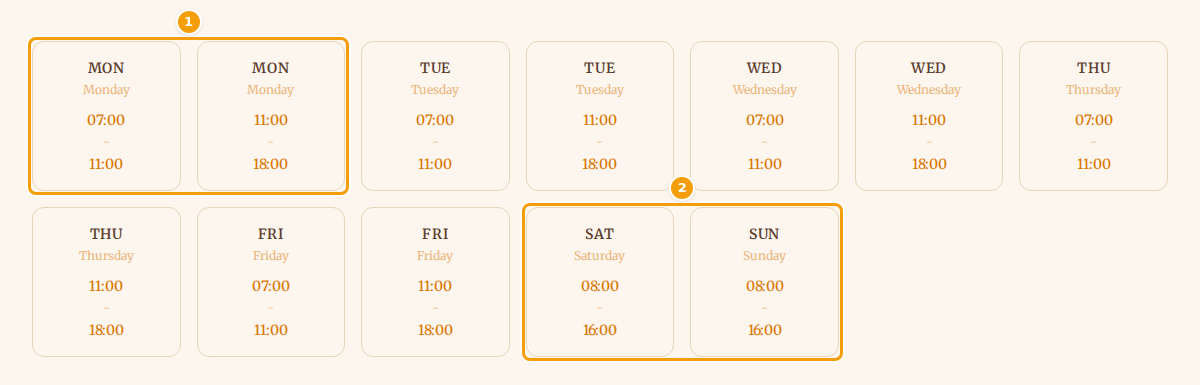
- Every period is shown on its own, so Monday with a breakfast and a lunch period shows two cards (1), or two lines in the other layouts.
- The type (Breakfast, Lunch …) is not shown on the website.
- The days start with Monday.
- A period that ends at 24:00 shows as 23:59.
The section reads your saved hours each time the page is opened. After you click Save Working Hours, there is nothing to publish.