Articles in this topic
Emails and messages
Get a hidden copy of the booking emails your guests receive, and find out which settings on the Communication tab really do something.
4 min read
The Communication tab of a booking calendar decides who gets a copy of the emails your location sends. You can have every booking confirmation land in your own mailbox too, without your guests noticing. The tab has six settings, but only BCC Email and the tick box Enable Messaging really do something today. This page tells you what each one does.
What this tab does today
- BCC Email sends you a hidden copy of the emails the system sends in your location's name. It works together with the tick box Enable Messaging. See Get a copy of your emails.
- BCC Email is also the address that hears about new event and celebration requests when you have not set an address of your own. Summary Email is the second choice for those. See Event requests.
- Send Daily Summary, Communication language and Email Reminder (days) do not send or change anything yet. See Settings that do nothing yet.
Get a copy of your emails
- In the menu on the left, click Booking Calendars. Click your calendar, then open the Communication tab.
- Make sure Enable Messaging (1) is ticked. It is ticked in a new calendar. Without it, no copy is sent.
- Type one email address in BCC Email (2), for example bookings@yourrestaurant.com.
- Click Save (3). The green message Saved. confirms it.
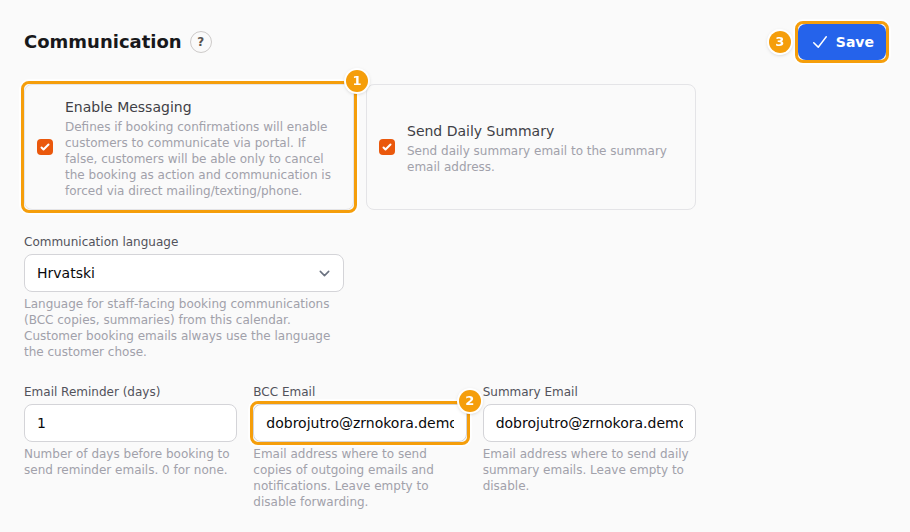
From now on, the emails the system sends in your location's name also go to your address in BCC (hidden copy). That includes the confirmation email a guest gets after booking online, and other emails sent for your location, such as voucher emails. The change works straight away; there is nothing to publish.
To stop the copies, empty the BCC Email box and click Save, or untick Enable Messaging and click Save.
Tip
Want copies to reach two or more people? Ask your email provider for one shared address that forwards to all of them, for example bookings@yourrestaurant.com, and type that address. The box takes one address only.
Good to know
Bookings that your team adds themselves in Booking Management do not send a confirmation email, so there is no copy for them either.
What your guests see
Nothing changes for your guests. They receive their confirmation as before. Your address is hidden — they cannot see it, and it is not added to what they receive.
The wording of the confirmation email itself is not set here. You can change it under Email Templates in the menu on the left, on plans that include it.
Event requests
BCC Email has a second job. When a guest sends an event or celebration request, Clava emails your team (if the staff email switch in Venue Setup is on). If you have not typed a Notification email address for these requests in Venue Setup, Clava uses the BCC Email of your booking calendar. If that is empty, it uses the Summary Email, and if that is empty too, the contact email of your location. See Decide who is told.
This works even when Enable Messaging is not ticked.
Settings that do nothing yet
Four settings on this tab look as if they send emails, but today none of them does. You can leave them as they are.
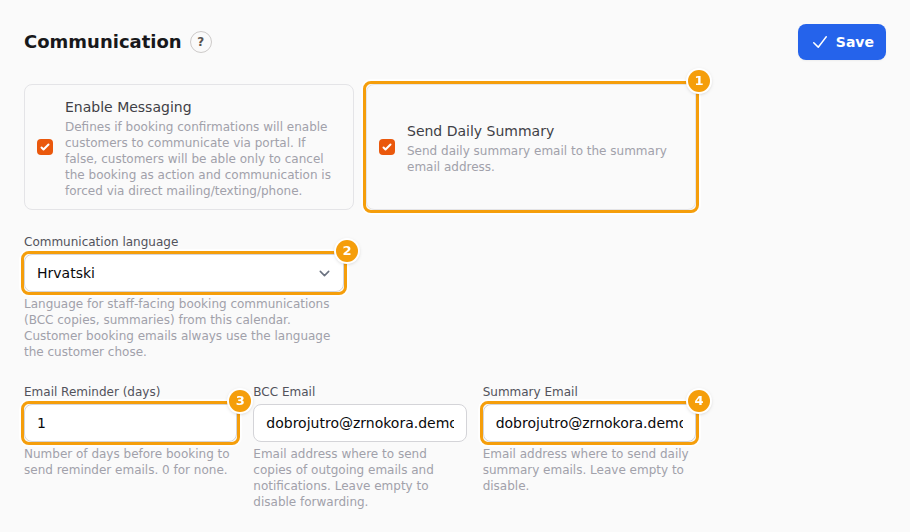
| Setting | What it does today |
|---|---|
| Send Daily Summary (1) | Nothing. No daily summary email is sent, whether the box is ticked or not. |
| Communication language (2) | Nothing you can see. It does not change the language of any email. Guests always get their confirmation in the language they chose on the booking page. |
| Email Reminder (days) (3) | Nothing. No reminder email is sent before a booking, whatever number you type. |
| Summary Email (4) | No summary is sent to it. Its only use is as a second choice for event request emails, see above. |
The help text under Enable Messaging speaks about a portal where guests write to you. In practice the tick box has one effect: it switches the BCC copy on or off. Unticking it does not switch off anything your guests can do.
Important
Please do not rely on Email Reminder (days) to remind guests of their booking. No reminder is sent. If you need reminders, contact your guests yourself.
If Clava refuses the address
Clava checks the addresses before it saves. If BCC Email (or Summary Email) is not exactly one valid address — for example two addresses separated by a comma, an address with a name in front of it, or a space inside — nothing is saved. A red message Not saved appears at the top, and a red text appears under the box: Enter exactly one valid email address (no name, no commas, no spaces), or leave the field empty.
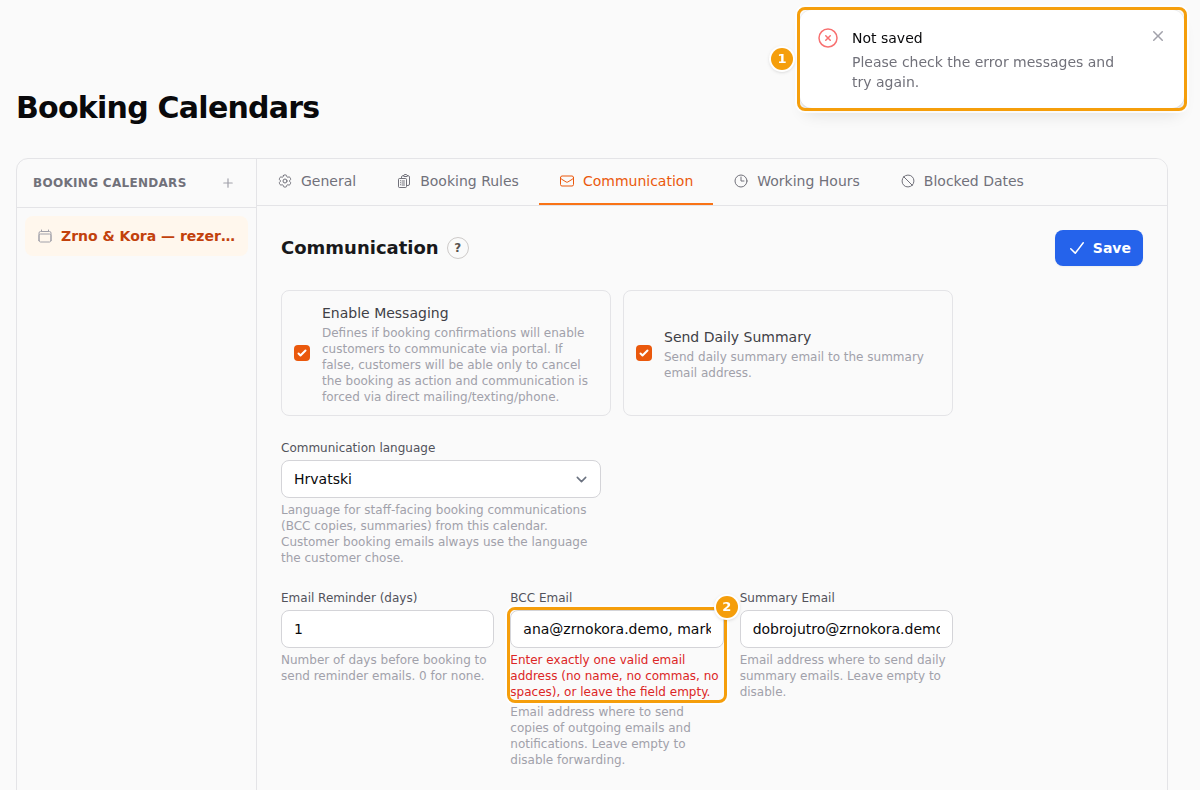
Correct the address and click Save again. This check protects you: a wrong address could stop your confirmation emails from going out at all.
Good to know
- Save on this tab saves the whole calendar, including what you changed on the General and Booking Rules tabs. If one of those tabs has a mistake, Clava jumps to that tab and shows the red message there.
- A change you have not saved is lost when you leave the page or choose another calendar.
- A new calendar starts with Enable Messaging ticked and BCC Email empty, so nobody gets a copy until you type an address.