Articles in this topic
Add a booking
Enter a booking by hand — New Booking for the times you offer online, Manual Booking for overflow, VIPs and events — and what the guest gets afterwards.
6 min read
Guests book online, but some bookings come in by phone, at the door or from the owner's friend. Add them on the Booking Board. There are two buttons, and the difference matters: New Booking follows your rules, Manual Booking doesn't.
Before you start
- Open the board of your location — see The Booking Board.
- Go to the day of the booking first. The form starts with the day shown on the board, but you can change it.
- Which button? Use New Booking whenever the guest can have a normal time. Use Manual Booking only when you must go past the limits — see below.
New Booking
- Click New Booking at the top of the board. A window Create New Booking opens.
- Under Guest, fill in First Name and Last Name, and an Email or a Phone — at least one of the two is needed so the booking can be told apart and found again. Type the phone number with its country code; if the guest is from another country, choose it next to the flag.
- Under Booking details, check the Date, choose the number of Guests, then choose a Time.
- Check the Floor/Section — the form fills it in when you choose a time — and leave Status on Booked.
- If the guest wants one of your special offers, choose it under Special Offer.
- Add a Note if there is something the team must know. If your calendar asks guests about allergens and diets, the same lists appear here — tick what applies.
- Click Create Booking. The window closes, a green message appears and the card is on the board.
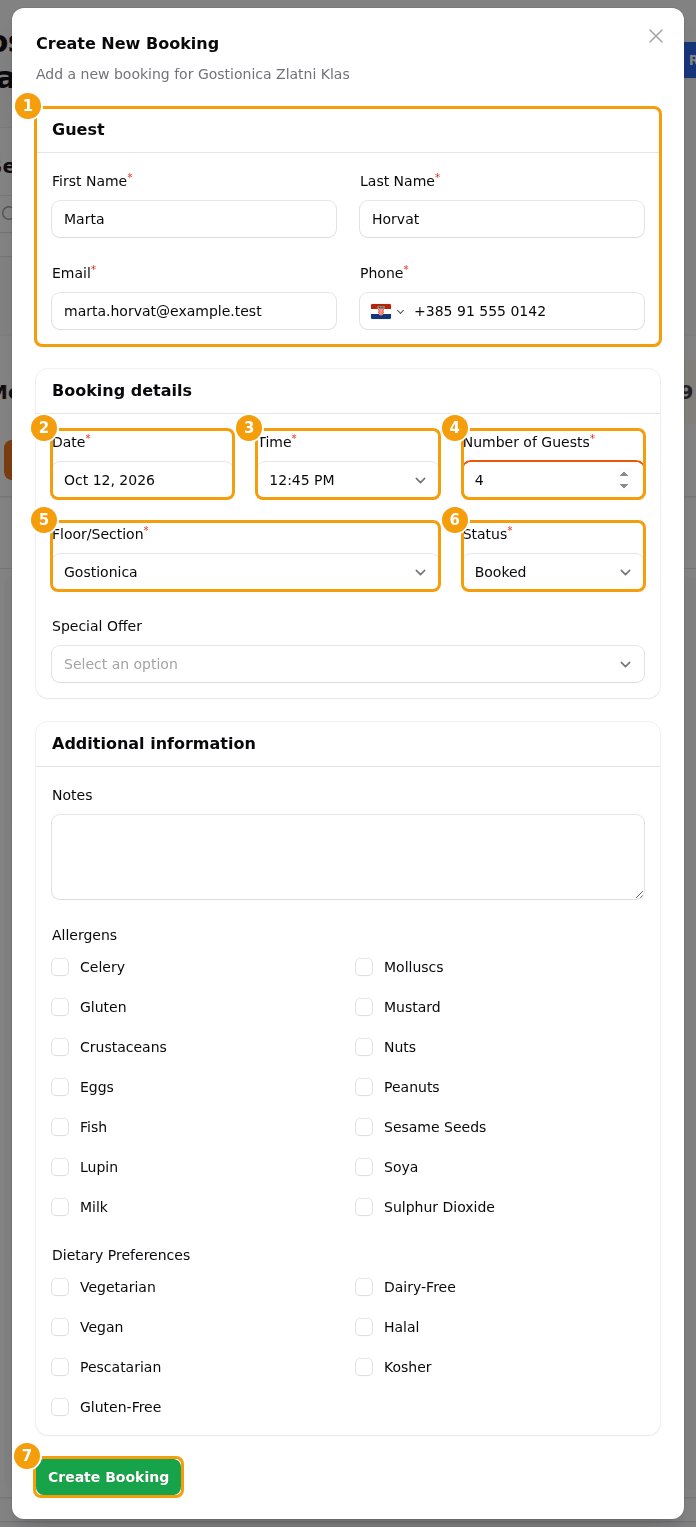
Good to know:
- The list of times is the same one a guest would see. It changes when you change the date or the number of guests, and it only holds times that still have room. A time inside a blocked period is offered too, marked blocked — your team may book there when a guest can't.
- Floor/Section is required. When you choose a time, the form picks an area that has room; change it if you prefer another. Without an area, Clava says "The floor/Section field is required."
- Status can also be set to Used — useful for a guest who walks in and sits down at once.
- A booking made this way lasts 90 minutes.
- Missing information stops the booking: a red message Validation Failed names what to fix, and nothing is saved.
Manual Booking
Use Manual Booking when the place is "full" but you want the booking anyway: a regular who always gets a table, a group that overflows, a VIP, an event. It skips all capacity rules and constraints — it doesn't check opening hours, free seats or blocked times.
- Click Manual Booking at the top of the board. The window Create Manual Booking opens with a yellow note, Manual Booking Mode.
- Fill in the Guest the same way as above.
- Choose the Date and the Start Time. Start times are every 30 minutes, around the clock.
- Choose the Duration: at least 2 hours, in steps of 30 minutes, up to 24 hours.
- Type the Number of Guests — there is no limit — and choose the Floor/Section.
- Click Create Manual Booking. A message tells you how many guests and for how many hours it was created.
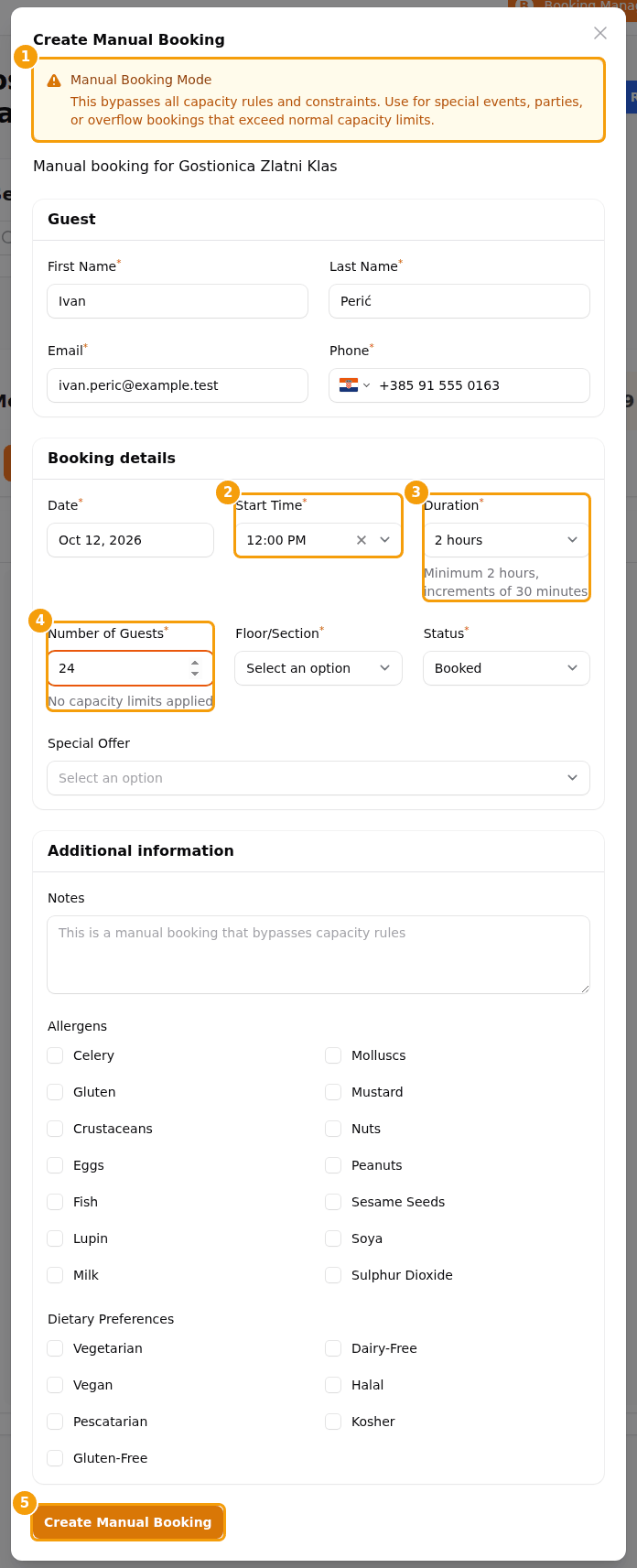
Careful
A manual booking holds seats that may not exist. Clava will not warn you when the area is full. Check the board before you promise a table.
A manual booking is easy to spot later: its time is often outside your opening periods, so it sits in the group Outside opening hours on the board.
What the guest receives
Nothing. A booking added by your team on the board does not send a confirmation email, and it has no Manage my reservation link. Only bookings made by guests on your booking page or website send the confirmation.
If the guest should have it in writing, tell them yourself or write to them under Messages.