Articles in this topic
Meetups of a series
Create a meetup of a series, decide who may book it and from when, give members places for guests, add speakers and members-only tickets, let the waiting list fill itself and announce the meetup to your members.
9 min read
A meetup is an event that belongs to a series. It has tickets or free registration, attendees and check-in like any event; on top of that you decide who may book it, you can name speakers, and its waiting list can look after itself.
A series does not have to call its occurrences "meetups": it may say sessions, workshops, tastings or words of your own, see What an occurrence is called. This help says "meetup" throughout.
Create a meetup
Open the series, choose the Meetups tab and click New meetup. The form is the one of a normal event: the series and its venue are fixed, and the number of guests, the way members sign up and the booking rules start from what you set for the series. Two more parts follow the usual three:
- 4. Members and booking: who may book (below).
- 5. Speakers.
The "?" next to the heading Members and booking opens this article.
New meetups start with the page design Meetup page, made for the series, and take the look of the series website. A new meetup is not shown on your venue's own website, only on the series website; you can change that with Show on your website in step 3.
An event you made earlier can join a series too: choose the series in the Part of a series field in step 1 of its form, and Not part of a series takes it out again. An event with a members-only ticket cannot leave its series.
Who may book
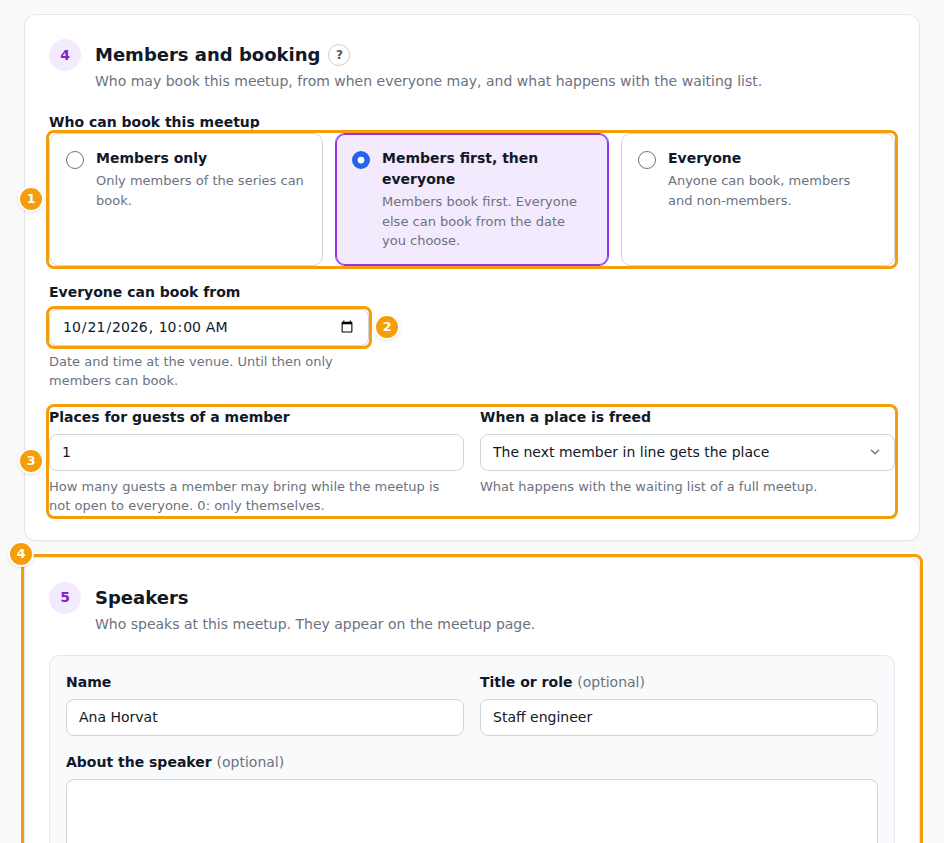
Who can book this meetup (1) has three choices:
| Choice | Who can book |
|---|---|
| Members only | Only members of the series. |
| Members first, then everyone | Members first; everybody else from the date and time you choose in Everyone can book from (2), in the venue's time. |
| Everyone | Anyone, members and non-members. |
Without a choice of its own, a meetup takes the setting Who can book a new meetup of the series.
What a visitor sees on a members-only meetup is a card Members only — This meetup is for members of the series, with Sign in and Join the series, and, for members first, the date when booking opens to everyone. A member sees the booking form with the note that they book as a member. Members book with the email address they joined with.
Places for guests
Places for guests of a member (3) says how many guests a member may bring besides themselves while the meetup is not open to everyone. 0 means only themselves, 1 means two places in all. The limit ends the moment the meetup opens to everyone.
Speakers
In part 5 click Add speaker and fill in the Name, Title or role and About the speaker. Add link adds up to four links with a Link text, such as LinkedIn, and a Web address. A meetup can have up to 12 speakers. A photo of a speaker is added in the website editor; the form keeps an existing photo and lets you remove it.
Speakers appear on the meetup's page, and the series page shows the speakers of its next meetups, see The series website and its design.
Members-only tickets
When members sign up with Tickets, every ticket type has a Who can buy choice: Everyone who can book the meetup or Members only. A members-only type is shown only to members, even when the meetup is open to everyone, and the Tickets tab marks it with a Members badge. It is a good way to keep a free place for members at a public meetup. See Tickets for the rest.
The waiting list
When a meetup is full and Waiting list is on, members can put themselves on the list: they say how many places they need (themselves and their guests) and, if there are several, which ticket. They see their position and can leave the list again.
When a place is freed decides what happens next:
- The next member in line gets the place (the automatic way): as soon as a place opens, the first member in line gets it, a reservation is made and an email tells them. This happens when a reservation is cancelled, when you raise the number of guests or the number of tickets, or when a ticket type is put on sale again.
- You give the place by hand: the Waiting list tab works as for every event, with Give a place.
With the automatic way the Waiting list tab says so, and Give a place is still there if you want to decide yourself. Only members get places automatically: someone who is not a member or has left stays on the list for you to look at. Switching a meetup to automatic does not give anyone a place until the next change. See Attendees and check-in for the tab.
Draft and publish
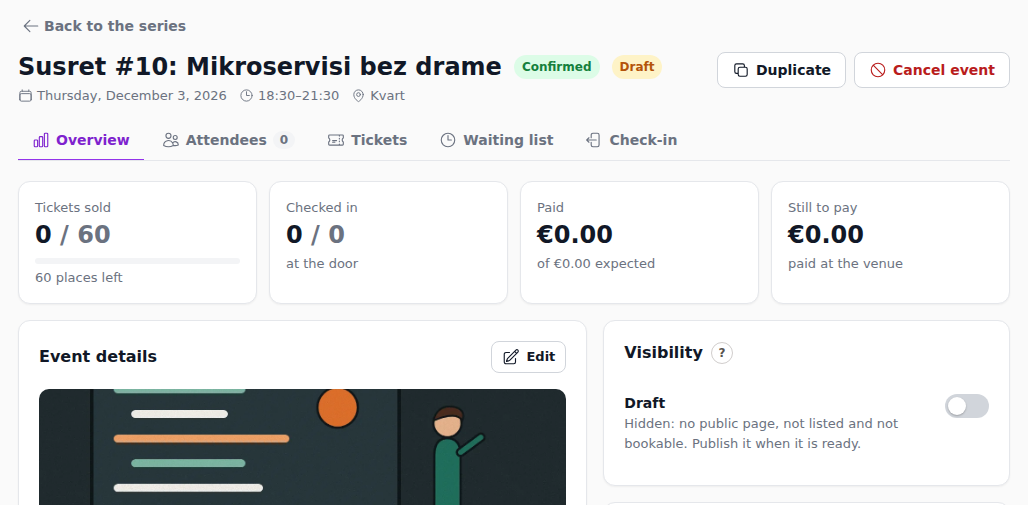
For a meetup you hold again and again, open the ... menu of the meetup (or click Duplicate on it) and choose Duplicate to another date. The dialog asks for a Name of the copy and the new date and times. The copy keeps the series, the tickets, the speakers and the page, but no guests or reservations, and it starts as a draft: hidden, with no public page, not listed on the website and not bookable until you publish it.
To publish it, open the copy and use the Visibility card on the Overview tab: switch it from Draft to Published and confirm with Publish. The same card turns any meetup back into a draft, for example while you still prepare it. See Draft and published for what a draft is.
Announce a meetup
On the Meetups tab an upcoming meetup has Announce to members. After you confirm, every active member who has announcements switched on gets an email with the date, the time, the speakers and a button Book my place. You can do this once for each meetup; afterwards the button says Announced on and the date. A meetup that is cancelled or over cannot be announced. Members switch announcements off with Email me when a new meetup is announced on their profile.
Two more cases cannot be announced: a draft (the button is greyed out; publish the meetup first, see Draft and publish) and a meetup that is Waiting for the venue because an organiser asked for a room that the venue has not yet confirmed (see Approve or decline a request).
The texts of the series' emails, the announcement included, can be changed like any other email, see Email templates.